Meta ad sizes are one of the few performance levers you control before a single dollar is spent. A creative built in the wrong ratio gets cropped by the platform, covered by interface elements, or shrunk into a thin strip of a tall screen, and the cost shows up as weak thumb-stop rates and inflated CPA. Most of that waste is avoidable.
The seven strategies below treat sizing as a workflow problem, not a spec sheet. They cover which ratios to build first, where text is safe, how to produce variants at scale, how to meet technical requirements, how to assign files to placements, how to fit copy to what is actually visible, and how to test ratios properly. Specs shift over time, so check Meta's official ads guide for current numbers before you finalize anything.
1. Design for 4:5 and 9:16 first, then adapt
Most Meta impressions happen on phones held vertically. A 9:16 asset fills the entire screen in Stories and Reels, and a 4:5 asset takes up more of the Feed than a 1:1 square does. More screen area means more of the viewer's attention belongs to you and less to the neighboring post. That is the mechanism: vertical formats win on real estate before the creative itself does any work.
Consider an illustration. A skincare brand builds a 9:16 master of a serum bottle on a soft gradient background, with the product centered and the background extended well beyond the subject. From that master it recomposes a 4:5 version by tightening the framing, and a 1:1 version by trimming further and nudging the product slightly to rebalance the layout. Nothing is stretched, and every version looks intentional.
- Create a 1080x1920 master (9:16) with the subject centered and the key message in the middle band.
- Extend the background beyond the subject so there is room to crop or recompose.
- Export a 1080x1350 version (4:5) and a 1080x1080 version (1:1), adjusting layout in each rather than just resizing.
- Keep a 1.91:1 landscape version (1200x628 for link ads) only if you have a placement that needs it.
The common mistake is designing a square first and then stretching or letterboxing it into vertical placements. Letterboxing leaves black or blurred bars that waste the screen, and stretching distorts product shots and faces. If you only have a square asset, rebuild the background and layout instead of scaling it.
To know it is working, compare CTR, thumb-stop rate (3-second video plays divided by impressions), and CPA by aspect ratio in Ads Manager's placement and breakdown views. If your vertical ratios do not beat the square on at least one of those, look at the composition before you blame the format.
2. Respect safe zones so UI never covers your message
Reels and Stories layer interface elements over your creative: the profile name and caption near the bottom, the call-to-action button, reaction and share icons along the side, and a progress bar and account handle at the top. Anything important placed under those elements is effectively deleted. Safe zones are the regions that stay clear, and they matter more than the canvas edge you see in your design tool.
Here is an illustrative case. A Reel places its headline in the bottom fifth of the frame, which looks clean in the editor. In the live placement, the caption and CTA button sit directly on top of it and the offer cannot be read. Moving the headline up into the center band restores legibility without changing a word.
The exact safe zone margins vary by placement and Meta updates them, so use the figures in Meta's current specs rather than a number you remember from a blog post. The practical approach is to build the guides into your template once, then reuse them.
- Add safe zone guides to every vertical template: top, bottom, and side margins as of Meta's current guidance.
- Keep the headline, logo, price, and CTA text inside the guides.
- Let backgrounds and non-essential visuals run to the edge.
- Open every placement preview in Ads Manager before publishing and check Feed, Stories, and Reels separately.
The mistake to avoid is trusting the design canvas over the live preview. Templates drift, Meta changes overlays, and different placements stack elements differently. The preview is the only source of truth, so make it a required step rather than an optional glance.
Measure the change directly. After you move text, watch CTR and video retention on the affected ads, and track a simple internal metric: the percentage of ads that pass a preview check before launch. A rising pass rate usually correlates with fewer wasted early impressions.
3. Build a size matrix: one concept, three core formats
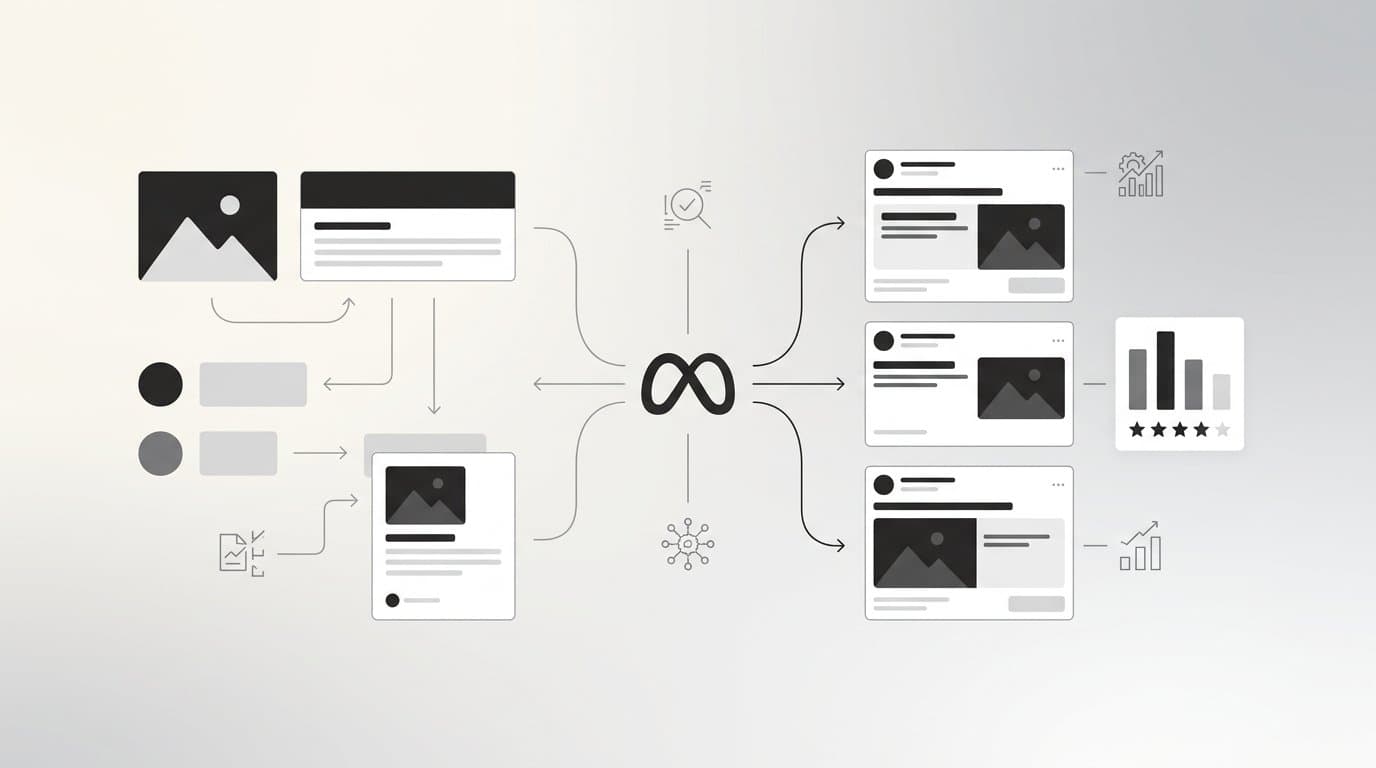
A size matrix is a grid with your concepts on one axis and your core ratios (1:1, 4:5, 9:16) on the other. The goal is to fill every cell. The mechanism is coverage: when each concept exists in every core ratio, Meta can serve the right shape to each placement, and you can compare formats cleanly because the underlying idea is the same.
For example, imagine one product video. You cut a 9:16 version for Reels with a faster opening and a tighter crop on the product, and a 4:5 version for Feed that holds a slightly wider frame and keeps the same voiceover. Both launch in the same ad set, so any performance gap reflects the format and not a different audience or budget.
Naming and templates
Without naming discipline the matrix collapses into a folder of files nobody can sort. Use a consistent convention that encodes concept, hook, ratio, and version, for instance SerumDemo_HookA_9x16_v2. Build one template per ratio so layout decisions are made once.
Production and storage
Producing the matrix by hand is where most teams stall. Bulk launch in AdStellar lets you push hundreds of variations in minutes, and the creative library keeps all ratio versions of a concept together so you can reuse them later. Tools like Ad Clone and URL to Ad Maker can also generate starting points that you then adapt per ratio.
The common mistake is mechanically scaling one file into three sizes. A 9:16 video shrunk into a square carries empty space and a misplaced subject. Recompose each version for its ratio, even if the change is only a crop and a text shift.
Track two numbers: the share of live ads with complete ratio coverage, and the performance spread between ratios for the same concept. A wide spread tells you where recomposition work is paying off or where one version is underbuilt.
4. Match resolution, file specs, and video length to the placement
Ratio gets the shape right, but resolution and file specs determine whether the creative looks sharp and loads quickly. Meta recommends a minimum width of 1080px for most placements. Below that, images soften and text edges blur, which makes an ad look cheap even when the idea is strong.
An illustration: a product image exported at 640px wide looks soft in Feed. Re-exporting from the original 1080px-or-larger source fixes it with no creative change at all. The fix is almost always at the source file, not in the ad.
- Export images and video at 1080px width at minimum, using the standard sizes: 1080x1080 (1:1), 1080x1350 (4:5), 1080x1920 (9:16), and 1200x628 (1.91:1) for link ads.
- Use supported formats such as JPG or PNG for images and MP4 or MOV for video.
- Check the current length and file size limits for each placement on Meta's specs page, since those caps change.
- Put the hook in the first 3 seconds of video so the opening works even when viewers scroll quickly.
The pitfalls are upscaling and over-compression. Upscaling a small asset to 1080px adds pixels but not detail, so it still looks soft. Compressing too hard to meet a file size limit introduces banding and artifacts. If a file is too large, trim duration or simplify the footage before you crush the bitrate.
To confirm the specs are doing their job, watch video hold rate, 3-second plays, and drop-off between click and landing page load. Large files and slow pages leak traffic after the click, so a healthy CTR paired with weak landing page sessions is worth investigating.
5. Use placement customization instead of relying only on auto-cropping
Advantage+ placements let Meta distribute your ad across Feed, Stories, Reels, and more to find cheap results. If you upload a single asset, Meta adapts it to each placement, usually by cropping or padding. Auto-cropping is not harmless: it can cut off a product or push your text into overlay zones. Placement asset customization lets you assign a specific file to each placement group within one ad, so the delivery system keeps its flexibility while you keep control of the visual.
Suppose an ad uses a 4:5 image for Feed and a 9:16 version for Stories and Reels, both under one creative. The ad keeps one set of copy and one identity in reporting, but each surface shows a composition built for it.
- In the ad setup, enable asset customization for the placements you want to control.
- Upload the 4:5 file for Feed and the 9:16 file for Stories and Reels.
- Keep the primary text, headline, and CTA consistent unless you have a reason to vary them.
- Open the preview for each placement group and confirm nothing is cropped or covered.
Two mistakes are common. The first is over-customizing every placement with unique files, which fragments learning and spreads spend thinly. The second is skipping vertical uploads entirely and letting a square get stretched across Stories and Reels. Start with two groups, feed-style and full-screen vertical, and add more only when data justifies it.
Measure cost per result by placement before and after customization, using the same date windows and comparable budgets. If Stories and Reels costs drop while Feed holds steady, the vertical file is doing its job.
6. Tune text and copy length to each format's visible area
Every placement shows a different slice of your copy. Feed truncates primary text behind a "See more" link, Stories and Reels show very little of it, and headlines get clipped at varying lengths. Character limits and display lengths change, so confirm current figures in Meta's specs. The principle holds regardless: the viewer sees the first line before anything else, and that line has to carry the weight.
For example, imagine an ad where the discount appears in the fourth sentence of primary text. In Feed, it sits behind the cut-off and most people never see it. Moving the offer into the first line, ahead of the truncation point, puts the reason to click in front of everyone.
On the creative itself, the same logic applies to on-image text. Small type disappears on a phone screen, particularly in a busy Reel. Short, large copy survives; paragraphs do not.
- Primary text: lead with the hook and the offer, then add detail after.
- Headline: keep it short enough to avoid clipping in the narrowest placement.
- On-image text: use a few large words, inside the safe zones from strategy 2.
- Review: view previews at actual phone size, not zoomed in on a desktop monitor.
The mistakes are burying the offer after truncation and packing the image with small text. Both are fixed by editing, not by redesigning. Cut anything the first line does not need.
Track CTR and link click-through rate by placement, along with engagement quality at the ad level, such as whether clicks lead to meaningful on-site behavior. If CTR rises but landing page engagement falls, the hook may be promising something the page does not deliver.
7. Test sizes as a creative variable and let element-level data decide
Aspect ratio is a variable like any other, and treating it that way turns opinion into evidence. The mechanism is isolation: hold the concept constant, change only the ratio, and any difference in results can be attributed to the format. Once you know which ratio wins for your audience and offer, you can apply that learning to new concepts instead of re-debating it each time.
An illustration: run an identical concept in 4:5 and 9:16 with equal budgets and the same audience. After enough conversions accumulate, you see that 9:16 produces a lower CPA. You then lead with 9:16 on the next several concepts and verify that the pattern holds.
- Pick one concept and produce it in each ratio you want to compare.
- Keep copy, audience, offer, and budget identical across versions.
- Let the test run until each version has enough conversions to be meaningful, not just enough impressions.
- Analyze placement breakdowns, then use AdStellar's creative analytics to score elements and watch fatigue detection over time.
- Save the winners to the creative library so they can be reused and cloned into new concepts.
The classic errors are declaring a winner too early and changing multiple variables at once. Early data is noisy, and a test that swaps ratio, hook, and music together tells you nothing about any of them. Resist the urge to call it after a day of promising numbers.
Measure CPA and ROAS per ratio only once conversion volume is sufficient, and keep watching fatigue signals. A winning format can decay as frequency climbs, so the result you trust today needs a refresh schedule tomorrow.
Where to start: a sequence that removes waste first
Start with strategies 1, 2, and 3. Vertical-first design, safe-zone-clean layouts, and a complete size matrix remove the most waste because they fix the problems that cost you impressions before any optimization begins. Once those base formats are stable, add placement customization (strategy 5) and structured ratio testing (strategy 7), since both depend on having clean files to assign and compare. Resolution checks and copy tuning fit in along the way as part of your export and review routine.
If you want to cut the manual work of producing, launching, and analyzing every ratio, AdStellar's bulk launch, creative library, and element-level analytics are built for exactly that workflow. Learn more about our services