Not all Instagram content works the same way. A GIF sticker on a Story, a looping video in the feed, a reaction in the comments, and an animated clip in a DM all follow different rules and require different approaches. If you have ever tried to upload a GIF file directly to your feed and ended up with a frozen still image, you already know this firsthand.
The good news is that once you understand how each placement works, adding GIFs across Instagram becomes straightforward. Instagram leans heavily on its GIPHY integration for Stories, DMs, and comments, while feed posts require a quick format conversion before anything moves. This guide covers every method in order, so you can go straight to the section that matches what you are trying to do.
Beyond organic content, there is also a strong case for bringing animated creatives into your paid Meta campaigns. Motion tends to stop the scroll in a way static images cannot, and the workflow for producing animated ad creatives at scale has changed significantly with AI tools entering the picture. We will cover that angle too, so you walk away with a complete picture of how GIFs and animated content fit into your Instagram strategy, both organic and paid.
Step 1: Understand Where GIFs Actually Work on Instagram
Before you open the app, it helps to know what you are working with. Instagram handles GIFs differently depending on where you want to place them, and treating every placement the same is where most people run into friction.
Here is a quick breakdown of the four main placements and how each one operates:
Stories: This is the most seamless GIF experience on Instagram. The app has a native GIF sticker option powered by GIPHY, and it works directly inside the Story editor. No conversion, no workarounds, just search and tap.
Feed Posts: Instagram does not accept raw GIF files as feed posts. If you try to upload a .gif file directly, the platform will either reject it or render it as a static image. The correct approach is to convert the GIF to an MP4 video file first, then upload it as a video post. Short MP4s loop automatically in the feed, which recreates the GIF experience for anyone watching.
Direct Messages: Instagram Direct has a built-in GIF button connected to GIPHY. You can search and send GIFs inside any conversation without leaving the app or converting any files.
Comments: A GIF button is available in the comment input field on many accounts, also powered by GIPHY. However, this feature is not universally available across all regions or account types, so it may not appear for every user.
Understanding these distinctions upfront saves you from trying to force a workflow that does not fit the placement. The GIPHY integration covers Stories, DMs, and comments natively. The feed is the one exception where you need to do a small amount of prep work before uploading.
One more thing worth noting: the GIF sticker library in Stories and the GIF search in DMs both pull from GIPHY's database, which means the same search terms work across both placements. If you find a GIF you love in one spot, you can find it again in the other using the same keywords.
Success indicator: Before you open the app, you know which placement you are targeting and whether you need to convert a file or just search GIPHY.
Step 2: Add a GIF Sticker to an Instagram Story
Adding a GIF sticker to a Story is the most intuitive GIF experience Instagram offers. The whole process happens inside the Story editor, and it takes less than a minute once you know where to look.
Start by opening Instagram and tapping the plus icon at the top of your feed or on your profile. Select Story from the options at the bottom of the screen. From here, either capture a new photo or video using the camera, or swipe up to pull in an existing image or video from your camera roll. This becomes the background layer of your Story.
Once your background is in place, look for the sticker icon at the top of the editor. It looks like a small smiley face with a folded corner. Tap it to open the sticker tray, which contains a range of interactive and decorative sticker options.
In the sticker tray, you will see a tile labeled GIF. Tap it. This opens the GIPHY search panel directly inside Instagram. You can either browse trending GIFs or use the search bar to find something specific. Search terms like "reaction," "excited," "fire," or your brand name will surface relevant options quickly.
Tap any GIF to place it on your Story. Once it is on the canvas, you can pinch with two fingers to resize it, drag it to any position on the screen, and rotate it to the angle you want. You can repeat this process to layer multiple GIF stickers on a single Story frame. There is no hard limit on how many you can add, though stacking too many can make the visual feel cluttered.
Tip: Try niche-specific search terms rather than generic ones. If you are posting about a product launch, search terms related to your industry or product category will surface GIFs that feel more intentional than a generic thumbs-up or celebration clip.
Common pitfall: If the GIF option does not appear in your sticker tray, the most likely cause is an outdated version of the Instagram app. Open your device's app store, check for an available update, and install it. The GIF sticker has been a standard feature for several years, so it should appear on any current version of the app.
Success indicator: You can see the GIF animating in your Story preview before you tap Share. If it is moving in the preview, it will move for your viewers.
Step 3: Share a GIF as an Instagram Feed Post
This is the one step in the guide that requires a bit of preparation before you open Instagram. The platform does not support raw GIF uploads to the feed, so you need to convert your GIF to MP4 format first. Once that conversion is done, the rest of the upload process is identical to posting any other video.
Several free tools handle this conversion cleanly. GIPHY itself is worth checking first. When you find a GIF on GIPHY.com, there is often a download option that exports the file as an MP4. Ezgif.com is another reliable option: upload your GIF, select the MP4 output format, and download the converted file. CloudConvert also handles this conversion and supports batch processing if you are working with multiple files.
Once you have your MP4 saved to your camera roll, open Instagram and tap the plus icon. Select Post from the options. Navigate to your camera roll and select the converted video file. Instagram will load it into the post editor, where you can trim the clip if needed, choose a cover frame, and adjust the crop.
From there, add your caption, relevant hashtags, and a location tag if applicable. Tap Share when you are ready.
In the feed, short MP4 videos loop automatically. This means a three-second or five-second clip will play on repeat as viewers scroll past it, which is exactly the looping behavior you want to replicate the GIF experience. The shorter the clip, the more seamless the loop feels.
Tip: Keep your converted video under 15 seconds for the best loop behavior. Longer clips tend to feel more like traditional video content and less like the quick, punchy loop that makes GIFs effective in a feed environment.
Common pitfall: Uploading the original .gif file directly is the most common mistake. Instagram will either reject it outright or display it as a still image with no animation. Always confirm you are uploading an MP4 before posting.
Success indicator: In the feed preview after posting, the video plays and loops without any static frames. If it is looping smoothly in preview, it will loop for your audience.
Step 4: Send a GIF in Instagram Direct Messages
Instagram Direct has a clean, built-in GIF experience that requires no file prep. The GIPHY integration is baked directly into the message input bar, so you can find and send a GIF in a few taps.
To get started, open Instagram Direct by tapping the paper airplane icon in the top right of your feed, or the messenger icon if your account uses the updated navigation. Open an existing conversation or start a new one by searching for a username.
In the message input bar at the bottom of the conversation, look for a small button labeled GIF. It sits alongside other message tools in the input area. Tap it to open the GIPHY search panel.
Type a keyword into the search bar to find something relevant, or scroll through the trending options if you want to browse. When you find the right GIF, tap it once. It sends immediately with no confirmation step, so make sure you have the right one before tapping.
The GIF appears in the conversation thread and plays on loop for both you and the recipient.
Tip: GIFs in DMs are a surprisingly effective tool for community management. Responding to a customer question or comment with a relevant, on-brand GIF adds personality to the interaction and tends to feel more human than a text-only reply. For brands managing active DM inboxes, this is a low-effort way to make responses more memorable.
Common pitfall: If the GIF button does not appear in your message input bar, check whether your Instagram app is up to date. On older versions of the app, the GIF button may be missing or tucked behind a different icon. Updating to the latest version should surface it.
Success indicator: The GIF appears in the conversation thread and plays on loop. Both you and the recipient can see it animating in the chat.
Step 5: Add a GIF to an Instagram Comment
GIF comments are available on Instagram for many users, though this feature is not universally accessible across all regions or account types. If the option is available on your account, it is a quick way to make your comments stand out in a busy thread.
Navigate to the post where you want to leave a GIF comment. Tap the comment bubble icon below the post to open the comments section. Tap the comment input field to bring up your keyboard.
In the row of tools above your keyboard or in the comment input bar itself, look for a button labeled GIF. Tap it to open the GIPHY search panel. Search for a relevant GIF using keywords, or browse what is trending. When you find the right one, tap it. The GIF posts as your comment immediately.
The GIF will appear in the comment thread as an animated image, visible to anyone who opens the comments on that post.
Tip: GIF comments are particularly effective on branded posts with high comment volume. A well-chosen GIF from a brand account responding to a fan comment tends to attract additional replies and reactions, which signals engagement to the algorithm and keeps the conversation going.
Common pitfall: If the GIF button is not visible in your comment input area, it may not be enabled for your account or region. This is a platform-level limitation, not something you can adjust in your account settings. Check back periodically, as Instagram has been gradually rolling out this feature more broadly.
Success indicator: The GIF appears as an animated comment under the post, visible to other users viewing the comments section.
Step 6: Use Animated Creatives in Instagram Ads
Everything covered so far has been about organic content. But if you are running paid campaigns on Meta, animated and video-style creatives deserve serious attention in your ad strategy.
Motion tends to capture attention mid-scroll in a way that static images often do not. In a feed full of photos and text, a looping video or animated creative creates a visual interruption that pulls the eye. For advertisers, this is not just an aesthetic preference; it is a strategic consideration when building creative assets for Meta campaigns.
For paid campaigns, you are not limited to GIPHY stickers or short GIF conversions. Meta's ad platform supports full MP4 video ads, and a short looping video ad functions almost identically to a GIF in the feed. Keep the clip tight, lead with your key visual or product, and let the loop do the work of holding attention.
The challenge for most teams is production. Creating multiple animated ad variations, testing them against different audiences, and iterating on what works requires either a design team or a faster workflow. This is where tools like AdStellar change the equation.
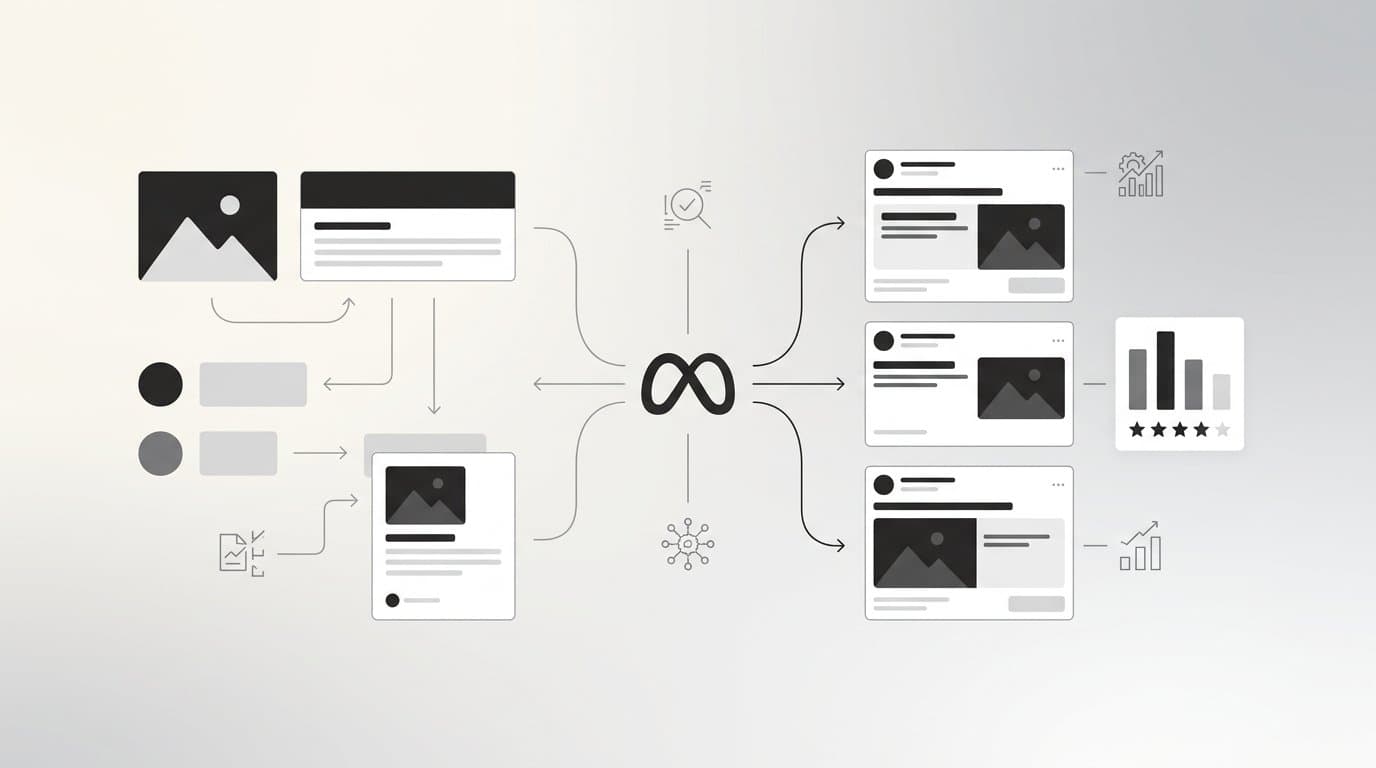
AdStellar's AI Ad Creative feature generates image ads, video ads, and UGC-style content from a product URL. You do not need a video editor, a designer, or a library of existing footage. The AI builds motion-based creatives from scratch, which means you can produce animated ad assets at a volume that would otherwise require a full production team.
Once your animated creatives are ready, AdStellar's Bulk Ad Launch feature lets you mix multiple creatives with different headlines, copy, and audiences and launch every combination to Meta in minutes rather than hours. Instead of manually building out each ad set, you define the variables and AdStellar generates and launches every combination.
From there, AI Insights ranks every creative by real performance metrics: ROAS, CPA, and CTR. You can see at a glance which animated format is driving results and which is not, without digging through spreadsheets or toggling between dashboards.
Tip: Think about animated ad creatives the same way you think about GIF stickers in organic Stories. The goal is to use motion to direct the viewer's attention to the thing that matters most, whether that is a product feature, a headline, or a call to action. Motion for its own sake does not convert; motion with purpose does.
Success indicator: Your animated ad creatives are live in Meta Ads Manager and performance data is flowing into your reporting dashboard. You can see which creatives are winning and reallocate budget accordingly.
Putting It All Together
Here is a quick reference for every placement covered in this guide:
Stories: Use the GIF sticker in the sticker tray. Powered by GIPHY. No file conversion needed.
Feed Posts: Convert your GIF to MP4 first using GIPHY, Ezgif, or CloudConvert. Upload as a video post. Short clips loop automatically.
Direct Messages: Tap the GIF button in the message input bar. Search GIPHY and tap to send. No extra steps.
Comments: Look for the GIF button in the comment input field. Available on many accounts but not universally rolled out across all regions.
Paid Ads: Use short looping MP4 video ads as your animated creative format. Tools like AdStellar can generate and launch animated creatives at scale without a production team.
The main friction point across all of these is the feed post conversion step. Every other placement works natively through GIPHY inside the app. The feed is the one exception, and once you have the conversion workflow set up, it becomes a quick extra step rather than a roadblock.
If you are managing paid Meta campaigns and want to bring the same motion-first thinking to your ad creative strategy, AdStellar handles the production, testing, and optimization side of animated ad creatives in one platform. Start Free Trial With AdStellar and see how quickly you can go from creative concept to live animated campaigns without a designer or video editor in the loop.