You’re probably here because the browser version of Google Ads is slowing you down.
Maybe you need to update URLs across a long list of ads, pause a batch of weak keywords, duplicate a campaign structure for a new market, or just download an account without waiting forever for the interface to catch up. That’s the point where google ads editor download stops being a simple install task and starts becoming an operations decision.
For small accounts, the web UI is fine. For large accounts, agency accounts, and anything with years of history, Google Ads Editor is still the safer and faster way to work. Its true value comes not only from its local installation. It's that you can control what you download, make changes offline, review them properly, and only push live what you meant to push.
Why You Still Need Google Ads Editor in 2026
If you’ve ever made bulk changes in the web interface, you know the two usual problems. It’s slower than it should be, and it makes it too easy to change something live before you’ve reviewed the full scope.
That’s why Google Ads Editor still matters. Google Ads Editor enables advertisers to work offline and perform bulk edits. Introduced around 2008, it addressed web interface limitations by allowing users to download entire accounts or specific campaigns, make changes locally, and upload them without risk. This offline functionality has established it as a cornerstone tool for saving hours on tasks like mass bid adjustments, as noted in this Google Ads Editor overview.
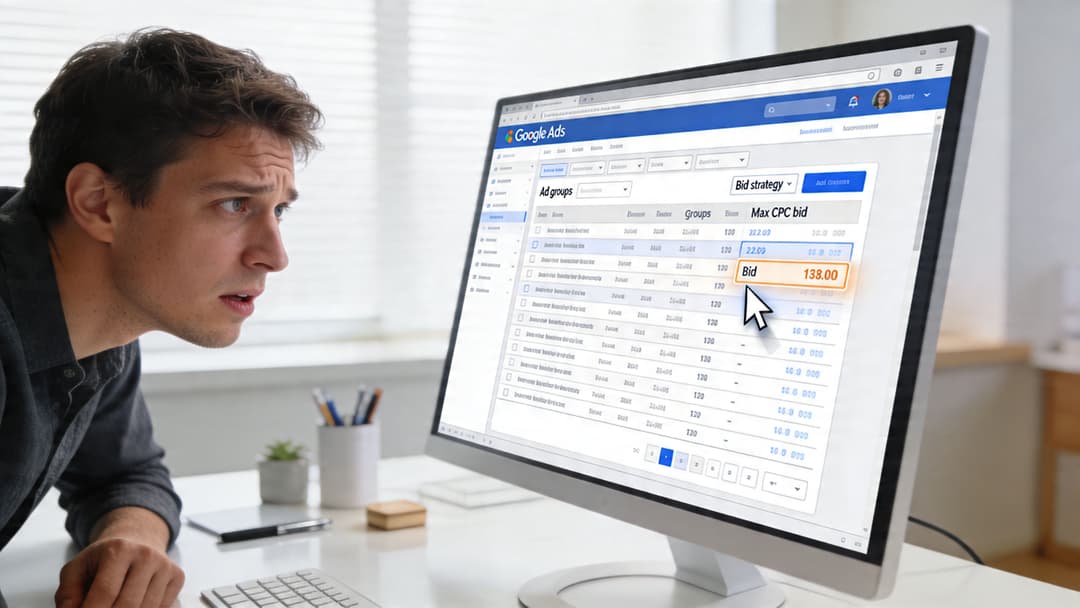
Where Editor beats the browser
The web interface is good for monitoring, spot checks, and one-off changes. Editor is better when the work is repetitive or high risk.
- Bulk edits: Change bids, URLs, labels, or ad copy across large sets without clicking through the account one item at a time.
- Offline review: Stage changes locally and sanity check them before anything goes live.
- Structure cloning: Reuse campaign and ad group setups without rebuilding from scratch.
- Cleaner navigation: The account tree mirrors how PPC teams typically think about account structure.
Practical rule: If the change touches many entities, use Editor first and the browser second.
There’s also a workflow reason to keep it in your stack. Teams that manage search alongside paid social often need one place for controlled bulk production on each platform. If you’re comparing broader workflow tools, this roundup of PPC Ad Management Software is useful context. For a separate look at software used across PPC operations, this guide to PPC advertising software is worth bookmarking.
What it doesn’t replace
Editor isn’t a replacement for every part of Google Ads. You’ll still use the web interface for live monitoring, certain in-platform diagnostics, and checks tied closely to current delivery.
But when the job is operational, especially for larger accounts, Editor is still the tool that keeps you from turning routine changes into an afternoon of avoidable friction.
System Requirements and Official Download Links
Start with Google’s official installer. Download Google Ads Editor from Google Ads Editor. Skip third-party download sites so you avoid outdated builds, version mismatch problems, and unnecessary security risk.
The app installs on Windows and macOS, and the installer itself is not large. What matters more in practice is the machine you plan to run it on. Editor stores account data locally, so performance depends less on the installer and more on how much campaign, ad group, and asset data you pull into it. On small accounts, almost any current laptop will handle it. On large agency or in-house accounts, low memory and limited free storage are where slowdowns usually start.
Google Ads Editor system requirements 2026
| Specification | Windows | macOS |
|---|---|---|
| Availability | Supported | Supported |
| Installer size | Relatively small download | Relatively small download |
| RAM guidance | More memory helps with larger account downloads and bulk changes | More memory helps with larger account downloads and bulk changes |
| Disk space | Free space needed for the app and local account data | Free space needed for the app and local account data |
| Best use case | Bulk offline edits, selective downloads, account maintenance | Bulk offline edits, selective downloads, account maintenance |
What to check before installing
A successful install does not guarantee a good first session. The first real test is the initial sync.
- Free disk space: The application is light, but local account data can add up fast if you manage several accounts or pull wide date ranges and full campaign structures.
- Available memory: Larger downloads and heavier find-and-replace jobs run better on machines with enough RAM. If Editor feels slow, the bottleneck is often the computer, not the software.
- Correct access level: Sign in with the Google account that already has the right permissions. If your team uses manager accounts, confirm access before install day.
- Google sign-in flow: Editor uses Google account authentication. If a junior team member needs context, this primer on how OAuth authentication works explains the sign-in process clearly.
- Stable internet for the first pull: You can work offline after download, but the initial account sync still needs a reliable connection.
The common mistake is treating download and setup as the same thing. They are not. Downloading the software is easy. Downloading the right amount of account data is what keeps Editor fast and keeps you out of sync hangs later.
If I’m setting this up on a new machine, I check storage first, confirm account access second, and keep the first download tight. That order saves time, especially on larger accounts where a full pull creates problems you did not need to create.
Your Step-by-Step Installation and Setup Guide
You install Google Ads Editor in a few minutes. The first setup decision can affect the next hour.
A new PPC manager usually gets tripped up at the same point. The app opens, sign-in works, and then Editor asks what to download. If they pull the entire account by default, a simple setup turns into a slow first sync, a cluttered sidebar, and a harder handoff when real work starts. Large-account workflow starts here, not after install.
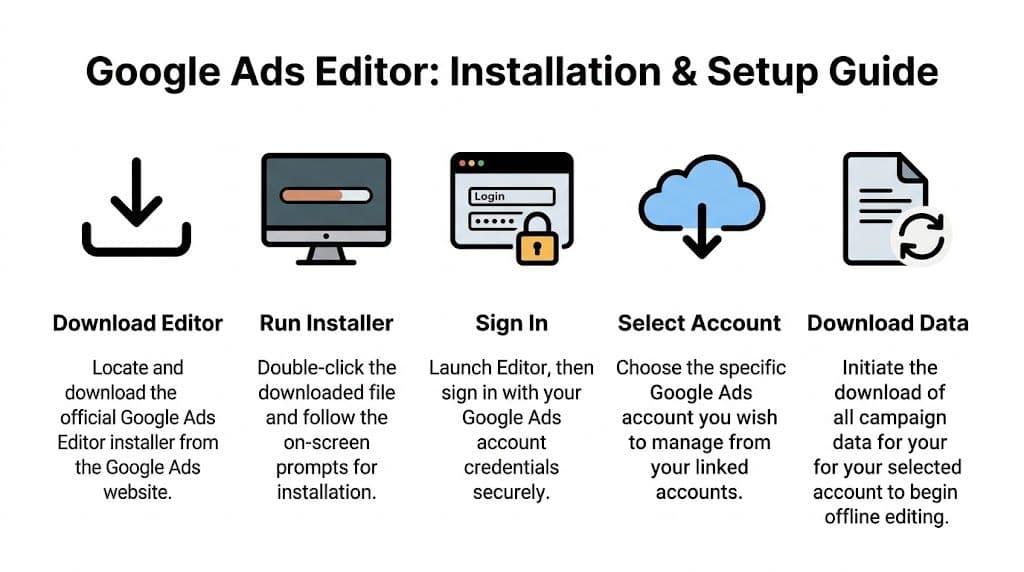
Download and install the application
Download Google Ads Editor from Google’s official Ads Editor page for your operating system, run the installer, and open the app.
Then sign in with the Google account you use to manage that client or manager account. In agency setups, the install itself is rarely the issue. The problem is signing in with one profile, then realizing the needed account sits under another login.
Add the account you intend to work in
After sign-in, add the Google Ads account from the account manager inside Editor. Pause for a second here. Similar client names, test accounts, and manager-account views create a lot of avoidable mistakes.
For a first session, choose the account based on the task in front of you. If the job is fixing URL paths in three live search campaigns, set up for that job. Do not download old paused campaigns, experiments, or every brand market just because they are available.
Choose a download scope that matches the work
This is the setup choice that matters.
Small accounts can usually handle a full download without much friction. Large accounts, older accounts, and accounts with a lot of campaign types are different. Start with selected campaigns unless there is a clear reason to pull everything.
A partial download keeps the interface cleaner, makes verification faster, and reduces the chance of the first sync hanging halfway through. It also helps newer team members understand what they are editing, because the account tree reflects the current assignment instead of the entire account history.
Treat the first pull as a working session, not an archive.
A setup sequence that holds up in real accounts
Use this order:
- Install and open the app first. Make sure Editor launches cleanly before you connect a large account.
- Sign in with the correct Google profile. This avoids wasting time troubleshooting access that is tied to the wrong login.
- Add one account at a time. First-time setups go faster when you keep the scope tight.
- Select only the campaigns needed for the current task. This is the simplest way to keep downloads fast and avoid sync stalls.
- Review the left panel after the download finishes. Turn on Hide Empty Types so you are not scanning irrelevant entity types.
- Confirm the expected campaigns and entities are present. If something is missing, check the download scope before assuming Editor has a problem.
That last check matters. In practice, “missing” ads, keywords, or extensions usually mean they were never included in the download.
Set up your working habits after the first sync
Once the account is stored locally, set a routine your team can repeat.
- Refresh with intent. Pull recent changes when you need current account state, and save broader downloads for bigger audits or rebuilds.
- Separate build sessions from cleanup sessions. Bulk launches, URL fixes, and policy troubleshooting are easier to manage in different working blocks.
- Keep account scope aligned with the task. If next week’s work is limited to one market or one campaign family, download that slice instead of expanding the whole account by habit.
That same production mindset applies to batch ad creation. If your team is also handling volume builds, this guide on how to launch multiple ads quickly is a useful parallel.
What usually goes wrong
The install rarely fails. Setup fails when the first download is too broad.
That is what causes slow syncs, bloated local sessions, and a messy first experience for someone learning the tool. Start narrow, confirm the account slice is right, and expand only when the job calls for it. That approach holds up much better in large accounts.
Mastering the Offline Editing Workflow
Once the account is downloaded, Editor becomes a real production tool. At this point, newer PPC managers usually realize the difference between “I can access the account” and “I can operate the account efficiently.”
A typical use case is simple. You need to update final URLs across many ads, pause a block of weak keywords, add negatives to several ad groups, and duplicate one campaign structure into a new geography. In the browser, that’s a lot of waiting and too much room for sloppy clicks.
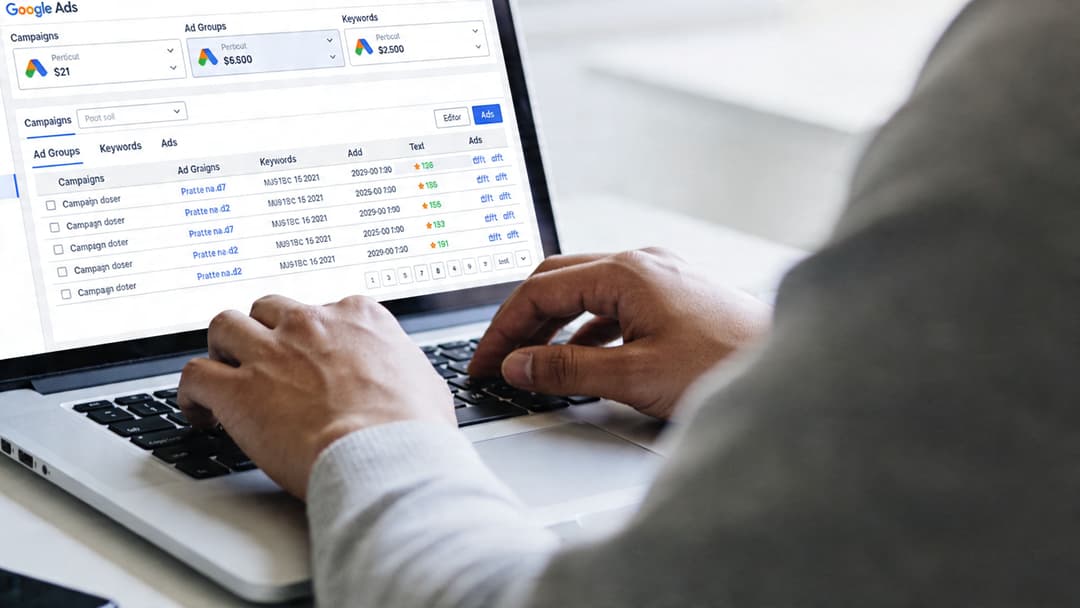
Work the account tree, not the search bar alone
Google Ads Editor follows the familiar hierarchy of Account > Campaign > Ad Group > Keyword > Ads. Use the left tree view to narrow the scope first, then edit within the entity type you care about.
That sounds basic, but it changes how fast you move. Newer users often search globally for everything, then wonder why they lose track of what they’re editing. Start by selecting the campaign or ad group family, then use filters and search inside that subset.
Use bulk tools where they actually help
The two bulk functions widely utilized are Find and Replace and import/export with spreadsheets or CSV files. They’re useful for:
- Promotional copy changes: Swap old offer language across a wide set of ads.
- URL updates: Replace landing page paths in batches.
- Keyword cleanup: Pause or relabel groups of terms quickly.
- New builds: Import structured data for campaign creation instead of typing line by line.
The safety step is Review changes. According to AdConversion’s Google Ads Editor write-up, agencies report an 85 to 95 percent first-pass upload success rate for changes reviewed in Google Ads Editor, compared with 60 percent for unvalidated bulk edits made in the web interface. The same source says “Post all changes” can batch and process over 10,000 entities in under five minutes.
Why this matters: Review changes isn’t admin overhead. It’s what catches duplicate keywords, broken structure, and posting conflicts before they become live mistakes.
A related workflow lesson applies across ad platforms. If you’re handling repetitive creative production elsewhere, this overview of bulk ad creation software shows the same principle in a different channel.
Post in clean batches
Don’t let a huge pile of unrelated edits accumulate before posting. Segment by task. Post URL changes separately from structural changes. Keep bid edits separate from campaign duplication work where possible.
That makes rollback thinking cleaner, and it also makes validation easier.
For a quick visual walkthrough, this video is useful:
Troubleshooting Common Errors and Sync Issues
Most Google Ads Editor problems come from download scope, not from the installer. If the app feels stuck, slow, or unstable, the first question is simple. Did you ask it to pull too much at once?
Long hangs during account download
Symptom: Editor appears to freeze or takes far too long during sync.
Cause: The account is massive, or you pulled too many campaigns, extensions, keywords, and assets in one go.
Solution: Use partial downloads. For massive-scale accounts, sync failures and long hangs are common. Using the partial download feature for specific extension types or campaigns is critical. Guidance summarized in Google support materials notes that this can cut processing time by 50 to 70 percent for multi-account users, while many users still download hundreds of megabytes unnecessarily in Google Ads Editor help on partial downloads.
Initial sync keeps failing
Symptom: You authenticate correctly but the first account download doesn’t complete.
Cause: Usually a combination of too much selected data and not enough local headroom.
Solution: Start with a smaller campaign set. Pull only active campaigns you need right now. If the account has a lot of history, avoid broad first downloads.
Posting errors after edits
Symptom: Changes validate poorly or fail during posting.
Cause: Conflicts inside the edit set, duplicate entities, or changes made without enough review.
Solution: Shrink the batch, review changes before posting, and separate unrelated edits into smaller groups.
With very large accounts, the winning habit is selective sync. Full downloads feel comprehensive, but partial downloads are what keep the tool usable.
If you also manage delivery issues on other ad platforms, the mindset is similar. Diagnose the bottleneck before changing creative or structure. This breakdown of why an ad may not be delivering on Facebook is a good example of that troubleshooting approach.
Frequently Asked Questions about Google Ads Editor
Can I use Google Ads Editor for multiple client accounts
Yes. It supports multi-account management, which is one reason agencies still rely on it. The practical rule is to stay organized about which account you’ve downloaded and which scope you’ve refreshed.
Should I always download the whole account
No. For large accounts, that’s often the wrong move. Download the smallest useful working set first, especially if you’re making targeted changes.
Does Google Ads Editor work offline completely
You can make edits offline after downloading account data locally. You’ll need a connection when you want to sync fresh data or post changes back to Google Ads.
Can I export account data
Yes. Editor supports CSV exports through the account export options, including whole-account exports, selected campaigns and ad groups, or the current view when the relevant stats were downloaded.
Is the web interface still necessary
Yes. Editor is best for controlled bulk work. The browser is still useful for live monitoring, quick checks, and parts of campaign management that benefit from the current in-platform view.
How often should I update Editor
Keep it current. Version drift causes unnecessary confusion, especially when team members compare screens or menu options. If something looks different across machines, check the installed version before troubleshooting the account itself.
If your team wants the same kind of bulk-production speed on Meta that Google Ads Editor gives you for search operations, AdStellar AI is worth a look. It’s built for launching, testing, and scaling large volumes of ad variations faster, with secure OAuth-based access and workflows designed for teams that don’t want manual campaign setup to be the bottleneck.