Think of Facebook event dimensions as the crucial details that add color and context to a user's actions. It’s one thing to know that a purchase happened, but it's another thing entirely to know what was bought, for how much, and in what currency. These parameters are what turn a simple data point into a story you can actually use.
Unlocking the Power of Event Dimensions
Imagine you’re a detective trying to solve the mystery of your campaign performance. Just knowing a 'Purchase' event fired is like finding a single, lonely clue at a crime scene. It tells you a sale was made, but that’s it. Facebook event dimensions are the rest of the evidence—they fill in the whole story.
These dimensions are the rich, descriptive details that give context to raw data. They answer the questions that really matter:
- What was purchased? The
content_idsparameter tells you the exact product SKU. - How much was it? The
valueparameter logs the total transaction amount. - Which currency was used? The
currencyparameter keeps your financial reporting clean and accurate.
This contextual data gets passed to Meta through both the Pixel (on the browser side) and the Conversions API (on the server side), transforming a generic "Purchase" event into a detailed report. For any marketer serious about growth, mastering these dimensions is non-negotiable for meaningful campaign analysis. To get a better handle on the tools that collect all this, check out our deep dive on the Meta Events Manager.
From Raw Data to Actionable Insights
Without dimensions, your analytics are flat. You might see 100 purchases, but you have no way of knowing if those were $10 trinkets or $1,000 high-ticket items. This makes calculating an accurate Return on Ad Spend (ROAS) pretty much impossible.
The screenshot below from Meta's own documentation gives you a peek at how these parameters are structured within the standard event code.
See how parameters like value and currency are nested inside the fbq('track', 'Purchase', ...) function? That’s how you provide the specifics for that single transaction.
By adding these layers of information, you’re feeding Meta's algorithm the high-quality data it craves to find more of your ideal customers. It starts to learn not just who converts, but what they convert on and how valuable they are to your business. This is the bedrock of effective ad optimization and building sustainable growth on the platform.
Putting Key Event Parameters to Work for Better Tracking
Alright, let's move from theory to practice. It’s time to get your hands dirty with the specific data points that actually fuel your analytics and Meta's ad algorithm. Implementing the right event parameters is like giving the algorithm a detailed, turn-by-turn map instead of just a vague destination—it makes sure your tracking is razor-sharp and your optimization efforts hit the mark from day one.
Think of parameters as descriptive tags you attach to every event. Sure, an AddToCart event is useful on its own. But an AddToCart event tagged with the product’s ID, price, and how many were added? That’s a goldmine of strategic information. This is the level of detail you need for accurate reporting and building seriously powerful audience segments.
The most important parameters are the ones that provide context—answering the "what," "who," and "where" of every action a user takes on your site.
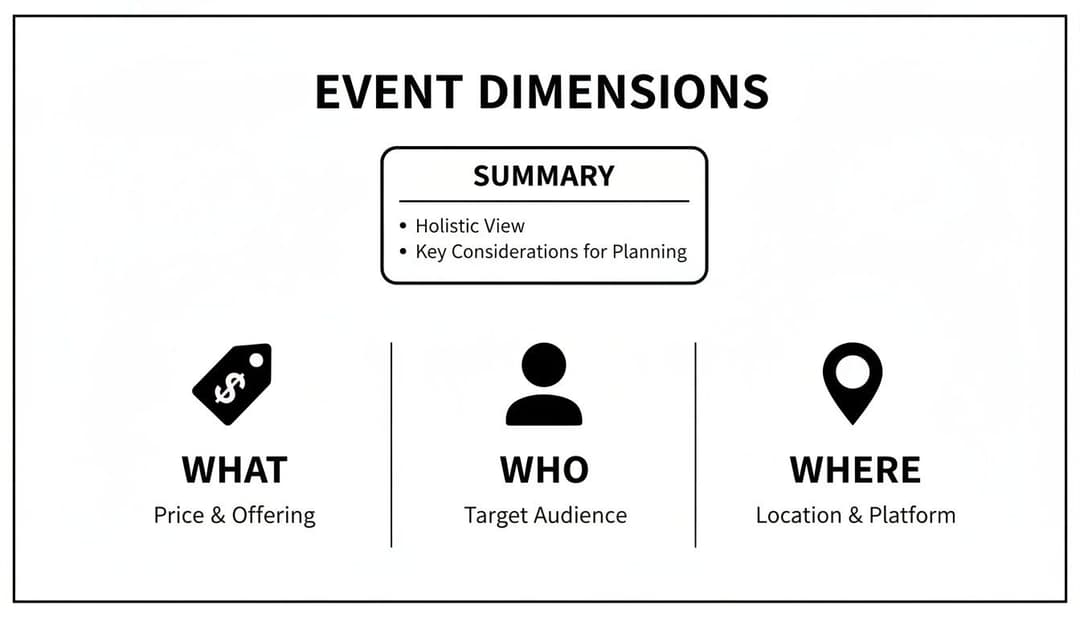
This visual shows how different dimensions come together to answer fundamental questions about the customer's journey, from the specific product they're eyeing to their location.
The Non-Negotiable Parameters
While Meta offers a whole menu of parameters, a few are absolutely non-negotiable for most businesses, especially if you're in e-commerce or lead generation. These are the bedrock of meaningful event dimensions on Facebook.
value: This is the monetary worth of a conversion. For aPurchaseevent, it's the total order amount. For aLead, you might assign a value based on its potential lifetime value. This is absolutely crucial for calculating ROAS.currency: Always send the three-letter ISO currency code (like "USD", "EUR", or "GBP"). Sending avaluewithout acurrencyis like yelling out a number with no context; it renders your financial reporting useless.content_ids: This is an array of unique identifiers for your products, like SKUs. It tells you exactly what was purchased, added to a cart, or just viewed.content_type: This parameter clarifies whether thecontent_idsrefer to a singleproductor aproduct_group. It’s a must-have for running catalog-based dynamic ads.num_items: This one’s simple: it’s an integer for the total number of items involved in an event, like the quantity of products in a cart.
The bottom line: The combination of
value,currency, andcontent_idsis the trifecta for powerful e-commerce analytics. It's what allows you to directly connect ad spend to the revenue generated by specific products, giving you true performance insights.
To make this easier, here’s a quick-reference table outlining the most important parameters you'll want to include for common e-commerce and lead generation events. These are the parameters that give you the richest data for optimization.
Essential Parameters for Key Facebook Standard Events
| Standard Event | Required Parameters | Optional (But Recommended) Parameters | Primary Use Case |
|---|---|---|---|
Purchase |
value, currency, content_ids, content_type |
num_items, order_id |
Measuring final sales, ROAS, and creating lookalike audiences from your best customers. |
AddToCart |
content_ids, content_type, value, currency |
num_items, contents |
Tracking purchase intent, retargeting users who abandoned their carts, and optimizing for add-to-cart actions. |
ViewContent |
content_ids, content_type, value, currency |
content_name, content_category |
Building audiences for dynamic product ads (DPA) and understanding which products are getting the most attention. |
InitiateCheckout |
content_ids, num_items, value, currency |
content_category, contents |
Identifying high-intent users who are close to converting; perfect for retargeting campaigns. |
Lead |
content_name, value, currency |
content_category |
Tracking sign-ups, form submissions, or quote requests. The value helps you measure the ROI of lead-gen campaigns. |
Getting these parameters right is foundational. They feed the algorithm with the high-quality signals it needs to find more people like your best customers.
Browser-Side vs. Server-Side: How to Send the Data
How you actually send this data depends on your setup: are you using the Meta Pixel (which runs in the user's browser) or the Conversions API (which sends data directly from your server)? The data itself is the same, but the formatting is a bit different. If you're new to this, making sure you know how to set up the Facebook Pixel is a great starting point.
Let’s look at a simple example. Imagine a customer just completed a $199.99 purchase for two products with SKUs "SKU123" and "SKU456".
Meta Pixel (JavaScript) Example:
You’d place this code snippet on your order confirmation page so it fires right after a purchase is completed.
fbq('track', 'Purchase', {
value: 199.99,
currency: 'USD',
content_ids: ['SKU123', 'SKU456'],
content_type: 'product',
num_items: 2
});
Conversions API (Server-Side) Example:
This would be part of a larger JSON payload you send from your server to Meta's servers. The structure is a bit more formal, but the core parameters are identical.
{
"event_name": "Purchase",
"custom_data": {
"value": 199.99,
"currency": "USD",
"content_ids": ["SKU123", "SKU456"],
"content_type": "product",
"num_items": 2
}
}
By making sure these key event dimensions are correctly implemented across both your Pixel and Conversions API, you create a robust, accurate data pipeline. Clean data is the foundation for everything else—from reliable reporting to game-changing campaign optimization.
Using Event Dimensions in Your Ad Reporting
Once you’ve got your event parameters implemented correctly, the real fun begins inside Meta Ads Manager. This is where all that carefully collected data gets turned into strategic insights—the kind that can completely change how you manage your campaigns.
The secret is knowing how to slice and dice your results.
Your main tool for this job is the Breakdowns menu. Think of it as a set of powerful lenses that let you view your campaign performance from all sorts of different angles. Instead of just seeing one big number for your total purchases, you can segment that data to uncover the hidden stories within. Knowing how to read event dimensions in your reporting is a critical step in building out effective strategies to measure event success.
Uncovering Insights with Breakdowns
Right out of the box, you can break down reports by standard delivery dimensions. These give you a solid foundation for understanding your campaign's reach and how your audience is engaging.
- By Time: Are people buying more on weekends? Or maybe late at night? Breaking down by day, week, or even hour helps you spot when your audience is most active.
- By Delivery: Segment your results by age, gender, country, or placement (like Facebook Feed vs. Instagram Stories) to see which demographics and platforms are driving the best results.
- By Action: See which ad creative, landing page, or even video sound setting (on vs. off) is getting you the best bang for your buck.
These standard breakdowns are valuable, but the real power is unlocked when you start using the custom parameters you've set up. This is where your content_ids and content_category parameters become your secret weapons for much deeper analysis.
By combining standard breakdowns with your custom event parameters, you move from knowing what happened to understanding why it happened. This is the difference between simply reporting on metrics and actively optimizing them for growth.
Leveraging Custom Parameters for Granular Analysis
This is where you finally connect ad spend directly to product-level performance. Inside the Breakdowns menu, you can pick dimensions from your product catalog that line up with the parameters you’re sending.
The screenshot below gives you a simplified idea of how you might customize columns in Ads Manager to see this data.
This interface lets you choose the exact metrics and breakdowns you care about, giving you a view of your campaign's performance that's tailored to your business.
Imagine you're running a campaign for a clothing store. By breaking down your Purchase event results by "Product ID," you can pinpoint exactly which shirts or pants are generating the highest Return on Ad Spend (ROAS). This lets you make smarter decisions, like putting more budget behind your top-performing products or creating new ads that feature them.
You could also break down by "Product Category," which might show that your "Outerwear" category has a much higher conversion value than "Accessories." That's powerful information. This level of detail empowers you to stop guessing and start making data-driven choices that directly impact your bottom line.
If you're looking for ways to streamline this entire process, you might be interested in our guide to Meta Ads analytics and automation.
Tracking Your Unique Funnel with Custom Dimensions
Standard events like Purchase or AddToCart are a great starting point, but let’s be honest—they don’t tell the whole story. Your customer journey is unique. What if the most valuable action on your SaaS website isn't a purchase, but a user starting a specific, high-value trial? This is exactly where custom events and their dimensions are game-changers.
By creating your own events, you can finally track the user actions that really define success for your business model. These custom signals give you a much clearer picture of what your users are actually doing, moving you beyond a generic funnel to map out what makes your business tick. This is how you start measuring and optimizing for the milestones that truly matter.
Defining Your Business-Specific Milestones
Let's make this real. Imagine a SaaS company wants to track not just that a user started a trial, but which plan they chose. A standard Lead event is way too broad. Instead, they can create a custom event called TrialStarted.
This TrialStarted event becomes infinitely more powerful when you pair it with custom dimensions. You could add a parameter like plan_type to distinguish between "Basic," "Pro," and "Enterprise" trials. All of a sudden, you can see which ads are driving the most valuable sign-ups, not just the most noise.
Here’s another example for a high-end fashion brand:
- Custom Event:
LookbookViewed - Custom Parameter:
collection_namewith values like "Spring2024" or "FallPreview"
This tells the brand exactly which collections are grabbing the most attention, creating the perfect segment for a hyper-targeted retargeting campaign. These custom dimensions are the building blocks for much smarter advertising strategies.
Custom events and parameters are your tools for teaching Meta's algorithm what you value. By tracking unique actions, you’re providing the data needed to find users who will engage with your business in the most meaningful ways.
Building Powerful Audiences from Custom Data
The real magic happens when you turn this unique tracking data into more effective advertising. Your custom events and their parameters become incredibly potent tools for creating audiences inside Meta Ads Manager.
For our SaaS company, they can now build a Custom Audience of everyone who started a "Pro" trial but didn’t convert. This group is highly qualified and the perfect target for a retargeting campaign that highlights pro-level features. Better yet, they could build a Lookalike Audience from their "Enterprise" trial users to find brand new, high-value prospects. Understanding how these custom dimensions feed into audience creation is a key part of leveraging the full power of the Meta Ads API.
Similarly, the fashion brand can retarget users who viewed the "Spring2024" lookbook with ads featuring items from that exact collection. This level of personalization is only possible when you track the specific dimensions that reflect your customers' interests. It’s how you turn broad data into sharp, actionable insights.
Optimizing Your Visual Event Dimensions
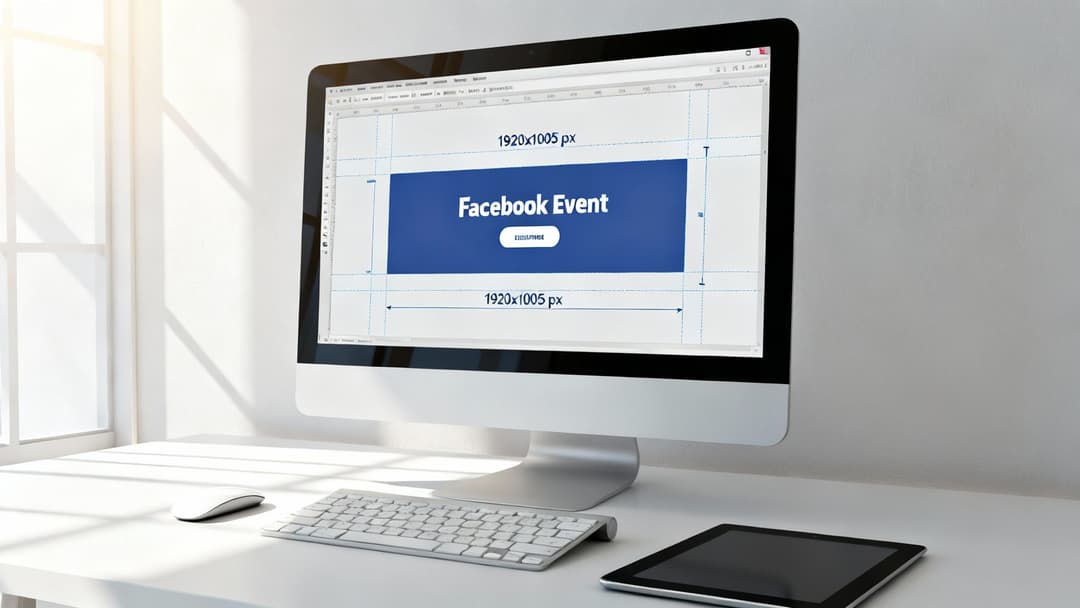
While all the backend data is the engine driving your campaign, your event banner is the shiny exterior that actually gets people to stop scrolling. Getting the creative right is just as vital as any tracking parameter. A poorly cropped or blurry banner screams unprofessionalism and can kill your registration rates before anyone even reads your event details.
Think of it this way: your event banner is the digital storefront for your event. If the sign is cut off or hard to read, potential attendees will just walk on by. It’s that simple.
Mastering the 1920x1005 Pixel Standard
For years, the go-to was a standard 16:9 ratio, but things have shifted. Facebook’s recommended event banner size is now a slightly shorter 1920x1005 pixels. This isn't just a random change; it’s a strategic move to a 1.91:1 aspect ratio that better accommodates mobile viewing.
This adjustment was made for a simple reason: over 98% of users are on mobile. The new dimension ensures your creative looks perfect without awkward cropping on the small screens where most people will see it. If you want to dive deeper into how this has evolved, check out the latest on Facebook banner sizing best practices.
Sticking to this size is non-negotiable if you want your image to look crisp and professional everywhere, from a wide desktop page to a tiny mobile news feed thumbnail.
Adhering to the 1920x1005 pixel dimension isn't just a best practice; it's a strategic necessity. It guarantees your creative intent is preserved across devices, directly protecting your user experience and click-through rates.
Why This Precise Ratio Matters for Engagement
Respecting these visual dimensions has a direct and measurable impact on your results. When you design your banner within the 1920x1005 safe zone, you can place your event title, date, and key visuals with confidence, knowing they won’t get chopped off. This visual integrity builds trust and makes it easy for people to understand what you're offering.
It's amazing how one image adapts across the platform, but you have to plan for it. The table below shows exactly how your single banner gets cropped and displayed in different spots.
Facebook Event Banner Display Sizes Across Placements
| Placement | Device | Displayed Dimensions (Pixels) |
|---|---|---|
| Event Page | Desktop | 1920x1005 (full image) |
| News Feed | Desktop | 470x174 |
| Event Page | Mobile | 560x208 |
| News Feed | Mobile | 560x208 |
| Upcoming Events | Mobile & Desktop | Varies (small thumbnail) |
As you can see, the cropping is most aggressive on mobile feeds, which is where most of your audience lives. To win, you have to design for the smallest placement first. Center your most critical elements—like your event title and date—so they remain perfectly legible even after being cropped down to 560x208 pixels.
This mobile-first approach is the key to grabbing attention during a quick scroll. Ultimately, getting these visual dimensions right isn't just a box to check; it’s a critical part of turning passive scrollers into engaged attendees.
Troubleshooting Common Data Implementation Issues
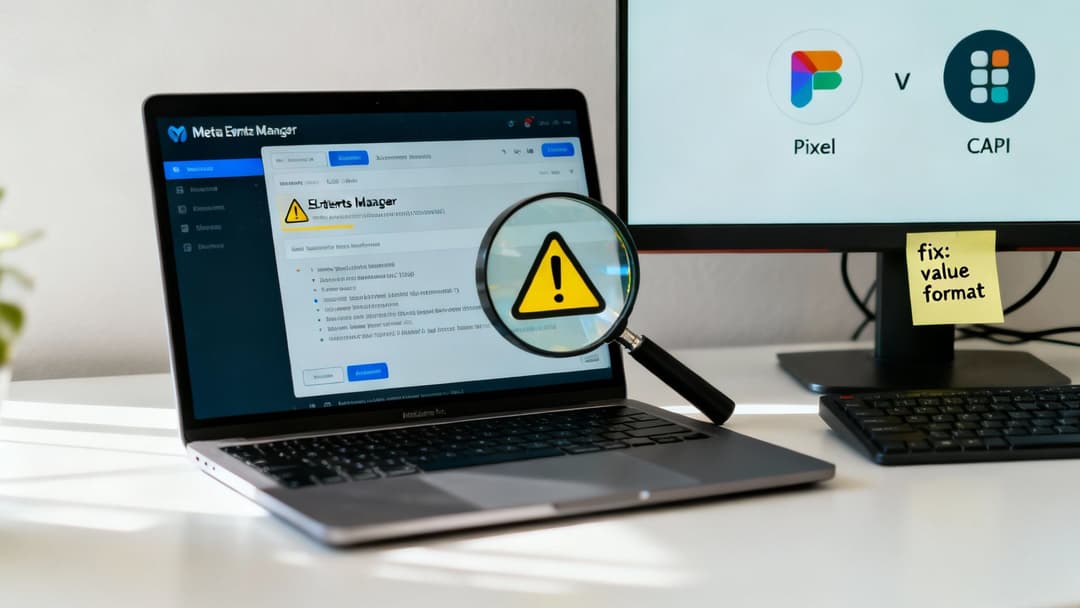
Even the most meticulously planned data setup can hit a few snags. The reality is, small errors in how you send event dimensions facebook can create massive headaches in your reporting and campaign optimization down the line. This is your field guide to diagnosing and fixing the most frequent issues, ensuring your data pipeline stays clean and reliable.
Think of your event data as high-octane fuel for Meta's algorithm. If that fuel is contaminated, the engine just won't perform. Simple mistakes—like sending a price as a text string instead of a number—can completely torpedo your ROAS calculations and send your campaigns veering off course.
Mismatched Data Formats
One of the most common tripwires we see is a data type mismatch. The value parameter, for example, is non-negotiable: it must always be a number (an integer or a float), never a string.
- Incorrect:
value: "99.99" - Correct:
value: 99.99
Sending the value wrapped in quotation marks tells Meta it's just a piece of text, not a monetary figure. This single error prevents the platform from adding up purchase values, leaving your ROAS columns depressingly blank. You can usually spot these issues in the Diagnostics tab inside Events Manager, which is pretty good at flagging events with formatting problems.
Another frequent slip-up is forgetting the currency code. Sending a value of 100 without specifying "USD" or "EUR" makes the number meaningless for financial reporting. You absolutely have to include a valid three-letter ISO currency code with every event that carries a monetary value.
Discrepancies Between Pixel and Conversions API
If you're running both the Meta Pixel and the Conversions API (CAPI) in parallel—which you should be—you'll probably notice the event counts don't line up perfectly. Don't panic; this is normal to a certain extent. Browser-based tracking (Pixel) gets tripped up by ad blockers and iOS 14+ privacy settings, while server-side tracking (CAPI) is far more resilient.
The trick is to minimize the discrepancy by properly implementing event deduplication. This all comes down to sending a unique event_id parameter for the same event across both the Pixel and CAPI.
By providing a matching
event_id, you're essentially telling Meta, "Hey, this purchase event from the browser and this one from the server are the exact same transaction. Please only count it once." This step is absolutely critical for preventing inflated conversion numbers and keeping your reporting accurate.
For instance, when a user completes a purchase, your backend should generate a unique identifier (like an order number) and pass it into both the Pixel and CAPI Purchase event payloads. Meta's system sees the matching IDs, merges the events, and processes only one, giving you a clean, unified view. To get a better sense of how different tracking methods work together, you can dig into a comparison of ad tracking tools and see where they fit in a modern marketer's stack.
Visual Dimension Errors
Just as your data dimensions require precision, so do your visual ones. An incorrectly sized event banner can be just as problematic as a bad parameter. The current spec of 1920x1005 pixels is non-negotiable if you want things to look right on every device.
While the banner looks great on a desktop event page, it gets auto-cropped to just 560x208 pixels in the mobile news feed—which is where the vast majority of your audience will see it. This standard was put in place to create a consistent look within Meta's video-first ecosystem. You can learn more about Facebook's banner standards to make sure your creative always hits the mark.
Ready to stop troubleshooting and start scaling? AdStellar AI automates campaign creation, testing, and optimization, using AI to turn your data into winning ads 10x faster. Launch, test, and scale your Meta campaigns with AdStellar AI.