That gut-wrenching moment you open Meta Ads Manager and see "Not Delivering" next to your brand-new campaign is something every marketer knows. It's not just a slow start; it's a complete standstill. Zero impressions. Zero spend. Your campaign is dead in the water.
The natural instinct is to start fiddling with settings, but that usually just makes things worse. The key is to have a methodical approach to diagnose the real problem without causing more chaos.
This guide is that methodical approach. We're going to walk through the common culprits to figure out if your issue is at the ad, ad set, or account level.
- Ad-Level Problems: Usually about the ad itself—is it stuck in review? Is there a "silent" policy violation holding it back?
- Ad Set-Level Problems: This is where your targeting lives. Think audience size, budget, and bidding strategy.
- Account-Level Problems: Broader issues here, like a failed payment or an account-wide spending limit you've forgotten about.
To make this even easier, here's a quick decision tree to help you visualize the troubleshooting path. It all starts with the simplest check and branches out from there.
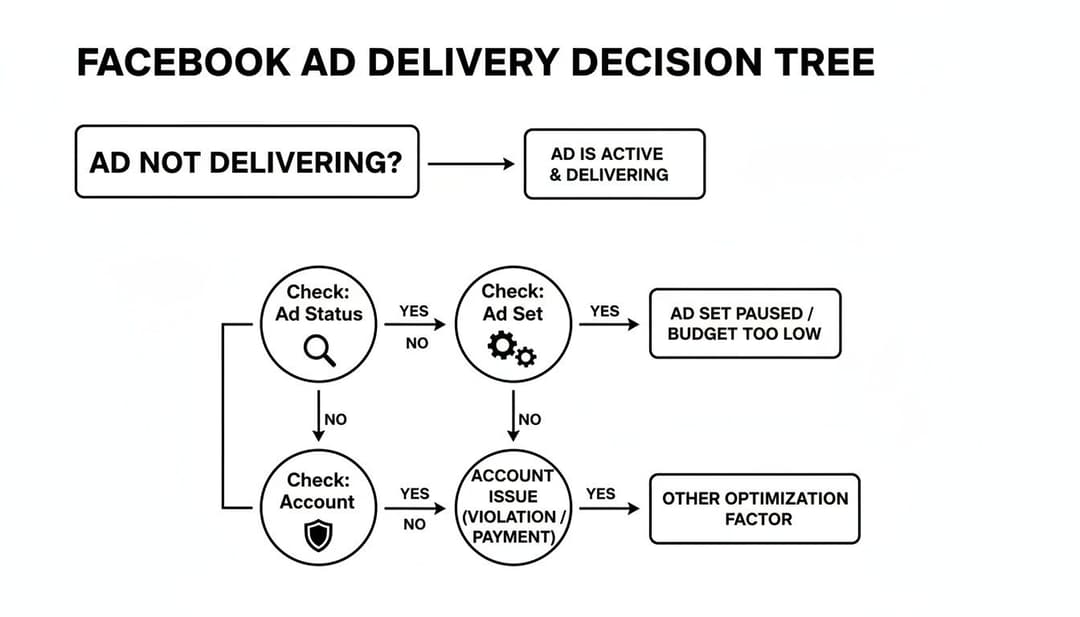
As you can see, the first stop is always your ad's status. From there, you can dig into the ad set and account settings to find what's really going on.
Quick Diagnosis for Facebook Ad Delivery Failures
Sometimes, the way your campaign is failing gives you a big clue about where to look. Use this table to quickly match the symptoms you're seeing in Ads Manager to the most likely cause.
| Symptom | Potential Cause | First Place to Check |
|---|---|---|
| "In Review" status for over 24 hours | Meta's review system is stuck or flagged something. | Ad Level: Ad Status Column |
| Status is "Approved" but 0 impressions | Audience is too small, bid is too low, or a "silent" rejection. | Ad Set Level: Audience Definition & Bid Strategy |
| "Learning Limited" or "Learning" with no spend | Budget is too small to exit the learning phase. | Ad Set Level: Budget Settings |
| All campaigns suddenly stop delivering | Account spending limit reached or payment failed. | Account Level: Billing & Payments Section |
| Ad was running, but now has 0 impressions | Ad fatigue (high frequency) or audience saturation. | Ad Level: Frequency Metric & Ad Set Level: Audience Size |
This isn't exhaustive, but it's a solid starting point for zeroing in on the problem area fast.
It’s Not Just a Meta Problem
Before we get into the nitty-gritty, it's worth remembering that these platforms all play by similar rules. While we're focused on Facebook and Instagram, understanding the common reasons why ads might not be showing on a platform like Google Ads gives you a better intuition for troubleshooting. Low bids, overly restrictive targeting, and policy flags are universal headaches for advertisers.
I've found that the most frustrating delivery issues are often the silent ones. Your ad dashboard says "Approved," but Meta has still throttled its reach to zero because of a minor policy issue, and you're left guessing because there's no clear error message.
Of course, the best way to fix a problem is to prevent it from happening in the first place. A flawless setup is your best defense. For a complete rundown, check out our Facebook ad launch checklist—it covers every critical step to take before you hit that publish button.
Navigating Ad Rejections and Policy Hurdles
So, your ad isn't running. If the dashboard is flashing that big, red "Rejected" status, at least you know where you stand. But what’s often more maddening is the "silent" rejection—your ad gets approved, but Meta’s algorithm quietly strangles its delivery because of a borderline policy issue. It’s one of the most frustrating things to deal with because, on the surface, everything looks fine.
Meta’s review process is almost entirely automated. Its bots are constantly scanning your creative, your copy, and even your landing page for anything that breaks the rules. And it's not just the obvious stuff. Tiny, subtle issues can get your campaign shut down before it even gets a single impression.
Common Triggers for Ad Rejection
You have to think beyond the blatant violations. A lot of the time, your ad gets flagged for things that seem completely harmless but fall into one of Meta's many restricted categories.
I see these all the time:
- Subtle Health Claims: You might think a phrase like "say goodbye to back pain" is fine, but Meta can interpret that as an unsubstantiated health claim. It doesn't matter if your product is a simple posture corrector; they'll still flag it.
- "Before and After" Imagery: This is a classic, textbook violation. Showing those dramatic transformations is a huge no-no, especially in the health, wellness, and beauty spaces. It’s considered misleading.
- Personal Attributes: This one trips up a lot of marketers. Writing ad copy that directly calls out a user's personal situation (like, "Tired of being in debt?") is a major red flag. Meta sees this as intrusive and will shut it down.
These gray areas are where countless ads go to die. Sometimes an ad will even run for a bit, get some traction, and then suddenly stop. That's usually the algorithm catching up and putting a halt to delivery without any warning.
Your First Stop: The Account Quality Page
When an ad gets rejected, don't just glance at the notification in Ads Manager. Your first real move should be to head straight to the Account Quality page in your Meta Business Suite. This is your command center for all things policy.
The Account Quality page gives you the specific policy your ad violated. Sometimes, it even points to the exact problem—whether it’s a word in your headline, the image you used, or something on your landing page.
The real challenge for performance marketers is how much stricter these policies are getting. For instance, recent data shows that Meta rejected 15% more ads in 2025 than in 2023, largely due to tighter rules on financial services and health claims. Many of these rejections are for subtle things that used to fly under the radar, which just goes to show how carefully you need to review everything before you hit "publish."
Once you know what the issue is, don't just click "Request Review" and hope for the best. You have to actually edit the ad and fix the problem. That could mean swapping out the image, rewriting the copy, or tweaking your landing page. Only after you've made a real change should you resubmit it.
The best defense is a good offense. Proactively reading up on Meta's advertising standards is non-negotiable. To get ahead of these problems, check out our deep dive into Facebook Ads policy. Honestly, staying informed is the only way to keep your campaigns out of that painful cycle of rejections, edits, and lost momentum.
Solving Audience and Targeting Dead Ends
So, your ad sailed through the review process, but it's crickets—zero impressions, zero spend. When this happens, your targeting is almost always the culprit. You can have a perfectly compliant ad, but if you've told Meta to show it to an audience that's nearly impossible to find, your campaign will stall before it even starts.
This is a classic dead end. It usually boils down to one of two things: either your audience is way too small and specific, or your different audiences are tripping over each other.

Is Your Audience Too Small?
It’s tempting to get surgical with your targeting. You layer on interests, add a few behaviors, and maybe a demographic or two, convinced you've built the perfect customer profile. The problem? You’ve just painted the algorithm into a corner.
Imagine you’re targeting "people who live in Boise, Idaho, who are interested in rock climbing AND veganism, and who have an anniversary within 60 days." Sure, those people probably exist, but you might be talking about a few thousand individuals at most. An audience that tiny is just too restrictive for Meta's delivery system, which needs a decent-sized pool to find people efficiently. If Ads Manager is showing your estimated audience size in the red or yellow, that’s a huge warning sign.
A classic mistake is uploading a small email list of a few hundred people for a custom audience and expecting miracles. Without a base of at least 1,000 matched users, these audiences often go nowhere, starving the algorithm of the data it needs to build a solid lookalike or even just deliver to the original list.
The fix here is pretty straightforward: start peeling back the layers. Remove the most specific targeting criteria one by one. Take away that extra interest or behavior and watch your potential reach jump up. This gives the algorithm the breathing room it needs to get to work.
Diagnosing and Fixing Audience Overlap
Audience overlap is a much sneakier, self-inflicted wound. It happens when you have multiple ad sets running simultaneously that are going after very similar, or even identical, groups of people. For example, you might have one ad set targeting "people interested in hiking" and another targeting a lookalike audience based on your recent customers... who also happen to be avid hikers.
When this happens, you’re literally forcing your own ad sets to bid against each other for the same person’s attention in the ad auction. It's a battle you can't win. This drives up your costs and confuses the algorithm, often causing one or both ad sets to under-deliver or stop completely.
Thankfully, Meta has a tool for this. It's called the Audience Overlap tool, and here's how to use it:
- Head over to the Audiences section in your Business Manager and select two or more audiences you think might be competing.
- Click the "..." button and select "Show Audience Overlap."
- The tool will spit out a percentage showing how many users are in both audiences. If you see a high overlap—anything over 20-30% is a red flag—you’ve found your problem.
If you find a big overlap, the best move is to either consolidate your ad sets or use exclusions. You could merge the similar audiences into one bigger, stronger ad set. Or, you can exclude one audience from the other to make sure you stop bidding against yourself.
For a much deeper dive into structuring your audiences for success, check out our full guide on Facebook ad targeting best practices.
Fixing Your Bids, Budgets, and Optimization Settings
If your ad is approved and your audience looks solid, the next place to hunt for problems is the campaign's engine room: your bids, budgets, and optimization settings. This is often where things go sideways.
Think of your budget as the fuel and your bid strategy as the foot on the gas. If you set either one wrong, your beautifully designed campaign will just sit there, stalled on the starting line. It's one of the most common reasons a Facebook ad is not delivering.
Even with a massive audience, a bid or budget that's too restrictive is like telling Meta’s algorithm you aren't serious about reaching them. It’s like walking into a car auction and offering a dollar for a Ferrari—you’ll be ignored. This is exactly where many advertisers accidentally shoot their own campaigns in the foot.

Unrealistic Bid and Cost Caps
Setting a manual bid cap or cost cap feels like you have more control, but it's a double-edged sword. If you tell Meta you want a cost-per-purchase of $5 for a product that realistically costs $25 to acquire, the algorithm won't even bother. It knows it can't win auctions and hit your target, so it simply won't spend your money.
I see this all the time. It’s a frequent delivery killer. You’ve basically priced yourself out of the market before the auction even starts.
- The Problem: An unrealistic cap keeps your ad from entering enough auctions to build any momentum.
- The Fix: If you're seeing zero delivery, your best bet is to switch to the Highest Volume bid strategy. This lets Meta's algorithm bid for you, focusing on getting as many results as possible within your budget. Let it run for a few days, see what your baseline cost-per-result actually is, and then you can think about setting a realistic cost cap based on that real-world data.
For a broader look at what it really costs to compete, it's worth understanding PPC management costs to get a better feel for the landscape.
The Learning Phase Is Fragile
Every single time you launch a new ad set, it enters the all-important learning phase. This is where Meta's algorithm works to figure out who to show your ads to and how. To get out of this phase, an ad set needs around 50 optimization events (like purchases or leads) within a seven-day window.
The single biggest mistake I see marketers make is constantly tinkering with a live campaign. Making significant edits—like changing the creative, targeting, or making a large budget adjustment—resets the learning phase. This forces the algorithm to start from scratch, often causing delivery to plummet or stop entirely.
If your ad set is stuck in "Learning Limited," it's a clear signal it isn't getting enough conversions to optimize properly. This state can seriously throttle or completely stop delivery. You have to resist the urge to make daily tweaks. Let your campaigns run for several days to gather stable data before you jump in and make changes. Managing this phase correctly is a huge part of effective ad spend optimization.
Daily vs. Lifetime Budgets
The type of budget you pick matters, too. A daily budget tries to spend a consistent amount each day, making it perfect for evergreen, always-on campaigns.
A lifetime budget, on the other hand, gives Meta the flexibility to spend more on days when it sees better opportunities. This means your daily spend might look uneven, but it can lead to better overall results.
But there's a catch. If you're using a lifetime budget with ad scheduling, one simple mistake can stop delivery cold. For example, if you set your ads to run only during specific hours but select the wrong time zone, they'll never see the light of day. When you’re troubleshooting why your Facebook ad is not delivering, double-check your schedule or just switch to a daily budget to rule this out as the culprit.
Untangling Account and Technical Glitches
Sometimes, your ads stop delivering for reasons that have nothing to do with your creative, audience, or bid. The problem can be buried deeper, lurking in account-level restrictions or technical hiccups that bring everything to a grinding halt.
These issues are often the sneakiest because they're not obvious, but they can completely shut down your campaigns until you sort them out.
Start with Your Account Health
Before you start pulling apart your campaigns, take a few minutes to check the basics in your Ads Manager. This can save you hours of frustration.
The most common culprit is often the simplest: a payment problem. If your primary payment method fails—maybe the card expired or the bank declined a charge—Meta will instantly stop all your ads. This isn’t a gradual slowdown; it's an immediate, full stop across your entire account.
Another frequent showstopper is the ad account spending limit. This is a hard cap you or someone on your team might have set ages ago and completely forgotten about. Once your total spend hits that ceiling, every single campaign stops dead in its tracks.
Here’s a quick checklist to run through:
- Check the Billing Section: Head over to the "Billing" section in Ads Manager. Look for any glaring notifications about failed payments. If you see one, update your payment info right away.
- Review the Account Spending Limit: In that same area, click into "Payment Settings" and see if an account spending limit is active. If you’ve hit the limit, you’ll need to either raise it or remove it entirely for your ads to kick back on.
- Visit the Account Quality Dashboard: Don't skip this one. Your Account Quality page is where Meta flags any account-level restrictions or policy violations that might be throttling your ability to advertise.
I once had an entire account stop delivering for a client, causing a huge panic. After checking everything in the campaign setup, I finally found the problem in the billing settings: the account had hit a forgotten $10,000 spending limit set a year prior. A ten-second fix solved a problem that had us stumped for hours.
When the Meta Pixel Is the Problem
If your account's finances are in the clear, the next place to look is your technical setup—specifically, the Meta Pixel and your conversion events. This is absolutely critical for any campaign optimizing for conversions like purchases or leads.
A broken or misconfigured pixel starves your campaign of essential data. Think about it: if Meta can't see the conversions happening on your website, its algorithm has no signals to optimize for. It doesn't know who to show your ads to, so it often dials back delivery or stops it completely to avoid wasting your budget.
To get a better handle on its foundational role, check out our guide on what the Facebook Pixel is and how it works.
To diagnose this, go straight to your Events Manager. Look for any errors or warnings tied to your pixel or the specific conversion event your campaign is using. A "No recent activity" warning is a major red flag—it means your pixel isn't firing at all. Fixing these technical glitches is non-negotiable if you want your conversion campaigns to deliver properly.
Still Have Questions About Ad Delivery?
Even after running through the whole checklist, you might be stuck on a few specific, and frankly, super annoying scenarios. It happens. Let's walk through some of the most common head-scratchers I see with Facebook ad delivery and get you some straight answers.

Why Is My Ad Approved But Getting Zero Impressions?
This one is maddening. You get the "Approved" notification and think you're good to go, but then... crickets. Zero impressions. Your ad is essentially sitting on the launchpad with no fuel.
Almost every time I see this, the culprit is hiding in the audience, bid, or budget settings.
First, take a hard look at your audience size. Did you get a little too specific? If you've layered on so many targeting rules that your potential reach is tiny, the algorithm simply can't find enough people to serve the ad to. Anything under 1,000 people is usually dead on arrival.
Next up, check your bid or cost cap. If you've set it too low, you’re telling Meta you want to be a bargain hunter in a premium auction. You'll get outbid every single time. Also, do a quick sanity check to make sure your campaign and ad set are actually toggled on and that you haven't smacked into an account spending limit.
How Long Does The Ad Review Process Really Take?
Meta's official line is that most ads are reviewed within 24 hours. In reality, it can drag on, especially if you have a new ad account or you're in a more scrutinized industry like finance or wellness.
If your ad is still "In Review" after 48 hours, it’s probably stuck.
You could contact support and wait... and wait. Or you can use a little trick that veteran media buyers have been using for years: just duplicate the ad or the whole ad set. This simple action shoves a brand-new copy into the review queue, and for whatever reason, it often gets looked at almost instantly, letting you leapfrog the one that's stuck in limbo.
An ad stuck in review kills all your momentum. The duplication trick is my go-to because it puts control back in your hands. Instead of waiting around for a support ticket to get a response, you can get a fresh ad in front of the review system in minutes and often get it approved within the hour.
Can Editing A Live Ad Kill Its Delivery?
Oh, absolutely. Tinkering with a live campaign is one of the fastest ways to bring it to a screeching halt. This is especially true if you make what Meta calls a "significant" edit.
A significant edit is basically any change that forces the algorithm to completely relearn how to deliver your ad, resetting the all-important "Learning Phase."
Watch out for changes to these key areas:
- Creative: Swapping out your video, image, or even just the primary text.
- Targeting: Adding or pulling audience interests, lookalikes, or demographics.
- Optimization Event: Flipping your goal from, say, link clicks to purchases.
- Budget: Any major budget shift (usually more than 20%) can trigger a reset.
When that learning phase resets, your delivery can get choppy, slow to a crawl, or just stop entirely while the algorithm figures things out all over again. The best practice is to let a new campaign run for at least a few days to gather stable data before you touch anything. If you absolutely have to make changes, try to batch them together to minimize the disruption.
If you're tired of the manual guesswork and frustrating delivery issues, AdStellar AI can help. Our platform automates the creation and testing of hundreds of ad variations, using AI to identify winning combinations and scale your campaigns 10x faster. Stop troubleshooting and start scaling with AdStellar AI.