You've got Purchase and Lead events firing, but the numbers still don't answer the question your business cares about. A lead from a pricing-page visitor shouldn't necessarily sit in the same bucket as a low-intent form interaction, and a purchase from a priority product line may need separate reporting from every other order.
That's where a Facebook custom conversion can help, provided you understand its limits. It doesn't repair tracking, create a new browser signal, or replace a sound Pixel and Conversions API implementation. It adds a configurable rule layer to events Meta already receives, giving you a more useful business definition for reporting, optimization, and campaign analysis.
What a Facebook Custom Conversion Actually Does
The first mistake usually happens after a marketer opens Events Manager and sees that standard events are too broad. Purchase, Lead, and CompleteRegistration describe recognized actions, but they may not distinguish the commercial segments you need to manage. A custom conversion lets you filter existing activity by a URL, a URL parameter, an event parameter, or a combination of rules.
Meta's documentation describes custom conversions as measurable conversion rules created from website activity without adding new Pixel code. You can build one from a standard event, a custom event, or all URL traffic through Meta's custom conversion documentation.
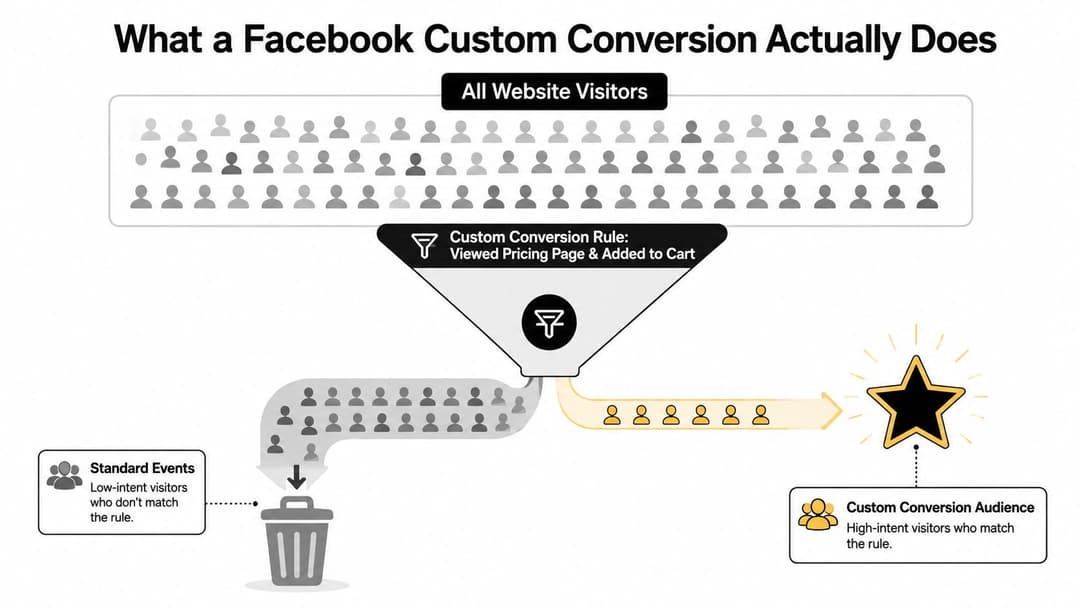
The practical implication is important:
A custom conversion can classify an event, but it can't manufacture one.
If the Pixel never sends the event, the rule has nothing to evaluate. If a server event arrives without the expected event name or parameters, the custom conversion may not match it. It also can't recover browser activity blocked before transmission, improve identity matching by itself, or deduplicate browser and server copies. Those are event architecture problems, not custom conversion problems.
Treat it as a rule layer
Think of the setup as three separate components:
- Pixel and CAPI events provide the raw activity.
- Custom conversion rules filter or group that activity.
- Campaign optimization and reporting use the resulting conversion definition.
URL rules and event-parameter rules solve different problems. A URL rule can identify a thank-you page or product path. An event rule can isolate a specific content_name, product category, or value condition when the URL is shared across many actions.
Meta's developer documentation exposes dedicated custom conversion and stats objects through the Graph API, which reflects their role as a reporting object rather than merely a visual shortcut. Meta also notes that archived custom conversions are no longer tracked. Product guidance further identifies 2 years without received data as a threshold at which inactive custom conversions may be automatically archived, so old rules need governance rather than permanent accumulation. Meta's custom conversion API reference provides the operational context.
There's also a hard capacity constraint. Meta's developer documentation states that an ad account can have 100 custom conversions. That makes this primitive unsuitable as an unlimited naming system. Reserve it for rules that create a real reporting or optimization distinction, and use standard or custom events for the rest.
For creative teams producing many campaign variants, a workflow such as Facebook video generator use cases can help with asset production, but the conversion definition still needs to come from a deliberate event and measurement design.
Building Your First Web Custom Conversion in Events Manager
Start with the event stream, not the rule. Before creating anything, confirm that the relevant Pixel is receiving the standard or custom event you intend to classify. Meta's recommended workflow is to install the Pixel, create or use an event in Events Manager, choose the conversion event, define a URL or parameter rule, and validate the result by triggering the relevant page in Events Manager. This guide to locating a Facebook Pixel ID is useful if you're working across several data sources and need to confirm the selected Pixel.
Create the rule
In Events Manager, open the relevant data source, select Custom Conversions, and choose Create. Use a name that identifies the business meaning, not just the implementation detail. A name such as pricing_high_intent_lead will be easier to audit than rule_4.
Choose the Pixel as the data source, then select the conversion event. Use the event that already represents the action, such as Lead, Purchase, or a custom event. If the action is represented by all URL traffic, follow Meta's guidance and retain the provided standard-event category for optimization. The custom conversion is the filter, while the category helps Meta interpret the business action.
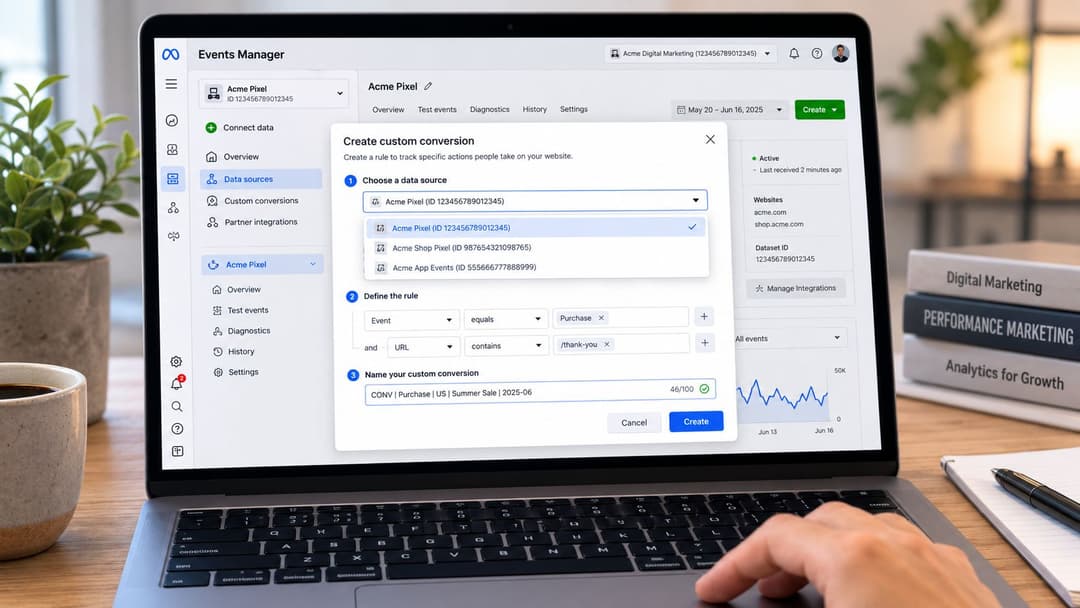
Next, define the condition. Common choices include:
- URL Contains, useful for paths such as
/checkout/confirmation. - URL Equals, appropriate when the full destination is stable and controlled.
- Event parameters, useful for fields such as
content_name,content_category, orvalue. - Combined conditions, useful when a shared thank-you page serves several products or lead types.
A URL rule based on ?category=high-value can separate a product segment when that parameter is reliably present. An event-parameter rule can do the same without depending on the visible page address. If you use a value condition, confirm that the event carries a value. Meta advises using the value field only when the event doesn't already include one.
Validate the match, then test the plumbing
Use the test interface to trigger the page or event. A successful match preview confirms that the rule can identify the activity you just generated. It doesn't prove that every real customer path will match, that the server event contains the same fields, or that browser and server copies will deduplicate.
Check the event in Test Events, then inspect the incoming details. Pay attention to URL formatting. Trailing slashes, www versus non-www, redirects, URL encoding, and query-parameter ordering can cause a rule to return no matches even though the page looks correct in a browser.
A rule should go live only after you've checked the actual production path. Test a normal conversion, a rejected or alternate path, and any route that passes through a third-party checkout. The rule is only as reliable as the event payload and URL structure beneath it.
Connecting Conversions API and Pixel Without Double Counting
A custom conversion built on a Lead or Purchase event will count whichever eligible event reaches Meta and satisfies its rule. If your website sends that action through both the browser Pixel and CAPI, you need a shared identity for the two copies. Otherwise, Meta can treat one customer action as separate events.
The usual pattern is straightforward. Generate a unique event_id for the conversion, send it with the browser Pixel event, and include the same identifier in the CAPI payload. Keep the event_name consistent as well, and pass the relevant event_source_url so Meta has the context needed to process the web event.

Many implementations fail here. The browser event might use Purchase, while the server uses a differently formatted name. The server may generate a new ID instead of reusing the browser ID. Or the Pixel fires after a confirmation page loads while CAPI fires from the order system before the browser receives the success state. Each mismatch makes deduplication harder and can change the count available to the custom conversion.
For implementation context, Meta Conversions API guidance covers the server-side event architecture that sits underneath this rule layer.
Verify both sources in Events Manager
Use Test Events to trigger a real test conversion. Confirm that the browser and server copies appear with the same event identity, then inspect Diagnostics for warnings. In the event details, look for source indicators, event names, IDs, timestamps, and the parameters used by the custom conversion rule.
The custom conversion doesn't deduplicate events. Your event architecture has to give Meta enough information to do it.
The Events Manager Overview can show whether events arrive from Pixel, CAPI, or both. If you see Pixel-only events when the server should also fire, check the order service trigger and server request. If you see CAPI-only events unexpectedly, inspect consent logic, browser blocking, and whether the page event is firing at all.
Event Match Quality is another launch gate. A weak match signal doesn't necessarily mean the custom conversion rule is wrong, but it can reduce the usefulness of the underlying event for attribution and optimization. Review the available user and event data, apply consent requirements, and avoid sending fields that your site hasn't collected lawfully.
Before launch, compare server logs with Events Manager, inspect duplicate warnings, and test a route where the same event can fire more than once. A CAPI-only design may capture events that never reach the browser, while a Pixel-only design remains exposed to browser-side loss. A hybrid setup with reliable IDs is usually easier to audit because each conversion has a browser and server path that can be compared.
Choosing Between Standard Events, Custom Events, and Custom Conversions
The right primitive depends on whether you're defining an action, recording a behavior, or filtering an existing action. Treating all three as interchangeable creates noisy optimization signals and consumes scarce custom conversion capacity.
| Primitive | Best Used For | Optimization Eligible | Consumes 100-Per-Account Cap |
|---|---|---|---|
| Standard Event | Canonical actions such as Lead, Purchase, or AddToCart | Yes, through Meta's recognized event categories | No |
| Custom Event | Behaviors that don't map cleanly to a standard action | Depends on campaign and event configuration | No |
| Custom Conversion | A rule-filtered business goal based on URL, event, or parameters | Yes, when supported by the selected workflow | Yes |
Use a standard event when Meta already has a recognized category for the action. A purchase should normally remain a Purchase event, even if you later create a custom conversion for a particular product group. Standard events provide a stable semantic foundation across reporting, audiences, and optimization.
Choose a custom event for behavior that matters to your business but doesn't represent a canonical conversion. Examples include a meaningful product interaction, a specific calculator completion, or a content interaction. The event should carry useful parameters, because the future rule or analysis will depend on the quality of those fields.
A custom conversion makes sense when the business definition depends on a destination or filter. A thank-you page for a high-value service, a product category encoded in an event parameter, or a lead form that shares a page with several offers are appropriate uses.
For teams managing large websites, website visitor tracking guidance can help separate broad visitation signals from actual conversion events.
Govern the account like a finite system
Audit overlapping rules before creating new ones. If two custom conversions count the same event under nearly identical conditions, consolidate them unless they serve different reporting or optimization decisions. Retire stale rules rather than preserving every historical experiment forever, especially because Meta's account limit is fixed at 100 custom conversions.
A useful operating principle is simple: standard events describe actions, custom events describe behaviors, and custom conversions describe selected business slices. That separation keeps the event schema reusable and protects the cap for cases that need rule-based flexibility.
Mapping Custom Conversions to Campaign Objectives and Bidding
A custom conversion only matters if the campaign workflow can use it. In Ads Manager, select the relevant conversion location and inspect the available event choices instead of assuming every objective exposes the same controls. Meta's workflow also advises keeping a standard-event category when using all URL traffic or a custom event source for optimization.
The practical decision is to preserve the recognized event category while using the custom conversion as the business filter. For example, a custom conversion based on a confirmation URL can still be categorized around a lead or purchase action, depending on what happened.
| Objective | Accepts Custom Conversion | Recommended Bid Strategy |
|---|---|---|
| Sales | Often, when the conversion location and event setup support it | Start with lowest cost while validating volume |
| Leads | Often, when the custom conversion represents a qualifying lead action | Use lowest cost first, then consider a cost cap |
| Traffic or awareness workflows | Usually not the right place for a conversion-specific rule | Optimize for the objective's native result |
The bid strategy needs to match the amount and consistency of data available to the ad set. Lowest cost gives the system more freedom while you validate the rule. A cost cap can make sense when you have a stable target and enough qualifying conversions to guide delivery. A bid cap is more restrictive and can prevent delivery if the conversion definition is narrow or the auction is competitive.
Narrow rules improve business relevance, but they can starve delivery if they exclude too much of the event stream.
Avoid creating a separate custom conversion for every ad set unless the distinction affects a real decision. One consolidated rule can support multiple campaigns when the business definition is shared. Separate rules are justified when the funnels, offers, or qualification criteria differ.
Value-based optimization requires clean value data and a conversion definition that represents comparable transactions. If the event already carries a value, don't add a conflicting value rule just because the interface offers the option. Use a value condition when it clarifies the business segment, not as decoration.
For broader campaign-structure decisions, this overview of campaign objectives gives useful context for matching optimization choices to the outcome you're buying.
Why Your Custom Conversion Is Undercounting and How to Fix It
Undercounting usually starts below the custom conversion layer. The rule may be perfectly valid, but the underlying event is missing, arriving through only one source, or carrying different data than the rule expects. That's why the right diagnostic sequence begins with the event schema rather than immediately rebuilding the conversion.

Start with the symptom
If the custom conversion shows zero, trigger the path in Test Events and inspect the exact URL and event parameters received. A rule using URL Equals may fail after a redirect adds a slash or query string. A Contains condition may target an old route after a site deployment. Parameter names and values can also differ in capitalization or formatting.
If counts suddenly drop, compare the current URL structure with the version used when the rule was created. Check confirmation-page redirects, checkout changes, CDN rewrites, consent behavior, and any deployment that changed event timing. A custom conversion won't automatically adapt to a new page path.
If Ads Manager trails server logs, determine whether the server event reaches Meta at all. Then compare the server's event_name, event_id, event source URL, timestamp, and parameters with the browser copy. Missing or inconsistent IDs can produce duplicate handling problems, while a server event that lacks the parameter used in the rule won't match even if the order exists.
Use a fixed investigation order
- Validate the rule: Trigger the exact customer path in Test Events and inspect the received URL.
- Confirm schema alignment: Make sure browser and server events use the same event name and required rule parameters.
- Check event identity: Verify that the same conversion shares the same
event_idacross Pixel and CAPI. - Review timing: Confirm that the server trigger fires when the transaction or lead is confirmed.
- Inspect deployments: Compare recent site, checkout, tag, and consent changes against the moment the count changed.
The most common silent failure is a rule that matches a test URL but not the production URL customers receive. Another is a server event that fires correctly but omits content_name, value, or another field required by the rule. For a deeper framework around reliable Meta measurement, this guide to tracking conversions accurately is a useful reference.
The key distinction remains unchanged: custom conversions can't recover missing events, repair identity matching, or fix deduplication. If the underlying stream is weak, improve the Pixel and CAPI implementation first, then reassess the rule.
Reporting, Naming, and an Ongoing Maintenance Routine
A custom conversion should be managed as a living measurement asset. In Ads Manager, review delivery, results, cost per result, and conversion value, then compare the figures across the attribution settings used by the account. Meta's surrounding attribution system commonly includes 7-day click and 1-day view reporting windows, and the selected window changes how conversion totals should be interpreted. Meta's custom conversion stats documentation explains how custom conversion data can be accessed programmatically.
Use a compact naming convention that an auditor can understand without opening Events Manager:
campaign_audience_offer_conversion_window
Mirror the meaningful slug across the custom conversion name, custom event, and corresponding CAPI event name where appropriate. Consistency makes it easier to trace an Ads Manager result back to the rule, event payload, and campaign that generated it.
A practical maintenance rhythm looks like this:
- Monday: Review deduplication warnings and event match quality against recent delivery.
- Wednesday: Investigate custom conversions with no recent results, checking whether the rule is stale or the funnel is inactive.
- Friday: Archive redundant or obsolete rules, while preserving documentation for anything tied to historical reporting.
A clean account is easier to optimize than an account with every possible funnel variation named as a conversion.
Run this checklist next Monday morning:
- Naming: Confirm every active rule follows the same readable convention.
- Deduplication: Check shared event IDs across Pixel and CAPI.
- Mapping: Verify each ad set optimizes toward the conversion that reflects its real business goal.
- Troubleshooting: Test the live URL and event parameters, not only a staging path.
- Reporting: Compare results using the attribution window that matches your account's reporting decision.
AdStellar AI includes a Pixel & Conversion Event setting for selecting the Pixel and event used when building Meta campaigns, which can keep campaign setup aligned with the conversion architecture you've just validated. Visit AdStellar AI to connect campaign creation and performance workflows with the event definitions your team relies on.