It's a common frustration: you've got the perfect GIF, but Instagram won't let you post it directly to your feed. The platform just isn't built to handle the .gif file format for standard posts. The good news? There's an easy workaround. By converting your GIF into a short, looping MP4 video, you can upload it just like any other video, keeping that classic animated magic intact.
For Stories and Reels, things get much simpler. You can tap directly into the built-in GIPHY sticker library to add a little motion to your content without any file conversions.
Why GIFs Are a Secret Weapon for Instagram Engagement

In a feed crammed with high-production videos and polished photos, the humble GIF has a unique power. Its simple, repeating motion is a fantastic scroll-stopper. It’s an immediate visual hook that grabs attention far more effectively than a static image ever could. For anyone in marketing, this isn't just about fun visuals; it's about real, measurable results.
A well-placed GIF can seriously boost key metrics like engagement and watch time. It injects a dose of personality and humor into your brand, making your content more memorable and shareable. It’s a low-effort, high-impact way to drive results without getting bogged down in complex video editing.
Connecting GIFs to Performance Metrics
When you start using GIFs strategically, you'll see a direct impact on your campaign performance. Instagram knew what it was doing when it added native GIF support to Stories back in 2018—they’ve been a staple ever since. Today, with Reels taking up 50% of all time spent on the app, turning GIFs into short, looping videos is a killer tactic.
We've seen carousel posts that mix in GIF sequences deliver 20-30% higher click-through rates compared to static image carousels. For AdStellar AI users running Meta campaigns, this kind of short-form video drives a 29% greater ROI. This is especially powerful when you consider that a whopping 62% of Reel views come from people who don't even follow you.
To really see how far your GIFs are traveling, you need to understand what Impressions on Instagram are and what they tell you. This metric shows you exactly how many times your animated content has appeared on someone's screen, giving you a clear picture of its visibility.
Mastering how to promote on Instagram often comes down to excelling at these small but mighty creative formats. By learning the simple tricks to get a GIF onto Instagram, you're unlocking a versatile tool for both organic growth and paid ads.
Using Instagram’s Built-In GIPHY Library for Stories and Reels
Honestly, the fastest and most direct way to get a GIF on Instagram is to use the tool they already give you. The platform’s native GIPHY integration for Stories and Reels is a game-changer because it skips all the hassle of converting files. It’s built right in.
This is your go-to for adding a quick splash of personality or a clear call-to-action without ever leaving the Instagram app. In just a few seconds, you can drop in a dynamic, attention-grabbing animation.
When you’re creating a Story or a Reel, just look for the sticker icon at the top of your screen. Tap it, and you'll see a big "GIF" button staring right at you. This opens up the entire GIPHY library, where you can find pretty much anything—from the latest trending memes to simple animated arrows pointing to a link.
Finding and Placing the Perfect GIF
The real trick is in how you search. Don't just type "happy." Get specific. Think about the exact emotion, action, or phrase that matches your content. A restaurant showing off a new pasta dish, for example, would get much better results searching for "chef's kiss" or "delicious food" than just "food."
Once you’ve found the one you want, you have total control over it:
- Pinch to resize it: You can make it a tiny, subtle accent or the main event.
- Drag to reposition it: Place it precisely where it’ll have the most impact.
- Tap to flip its orientation: Sometimes, just changing the direction it faces makes all the difference.
This kind of flexibility is what keeps your content looking polished and professional. It's also a good idea to keep your content dimensions in mind. To make sure every element looks just right, you can get a full rundown on the proper size of Instagram Stories.
I’ve seen marketers get amazing results by creating and uploading their own branded GIF stickers to GIPHY. Once approved, anyone can search for your brand and use your custom GIFs. It’s an incredible, low-effort way to spark user-generated content and boost your brand’s visibility.
Always think about the "why" behind your GIF. An animated "Link in Bio" sticker is there to drive traffic. A funny reaction GIF makes your brand feel more human and relatable. Instagram gives you a massive creative toolbox with this feature—it’s all about how you use it.
So, you've got the perfect GIF, but you want to put it right in your main Instagram feed, not just a Story. Here’s the catch: Instagram doesn't let you upload .gif files directly to your feed or as a Reel. The good news is there's a simple workaround that savvy marketers use all the time: convert your GIF into a looping MP4 video.
This trick keeps the classic, repeating motion of a GIF while making it perfectly compatible with Instagram’s video-first format.
To get started, you'll need a reliable online converter. Tools like EZGIF or CloudConvert are popular choices because they're quick and straightforward. The key is to make sure your final video file meets Instagram's specs to avoid any upload headaches.
Keep these numbers in mind:
- File Size: Keep it under 15MB for a smooth upload.
- Duration: Make sure it’s less than 60 seconds to comply with feed video limits.
- Aspect Ratio: Stick to a 1:1 ratio for square posts or go with 9:16 for vertical Reels.
A Quick Look at GIF to Video Converters
Not all converters are created equal. Some slap a watermark on your final video, while others hide HD exports behind a paywall. To save you some time, here's a comparison of popular free tools for turning your GIF into an MP4 video, highlighting features that matter for marketers.
| Tool | Key Feature | Best For |
|---|---|---|
| EZGIF | Direct GIF to MP4 | Quick, no-fuss conversions and basic edits. |
| CloudConvert | Batch conversion | Converting multiple files at once from cloud storage. |
| Kapwing | Basic trim and effects | Simple on-the-fly editing like trimming or adding text. |
Each of these tools gets the job done, so pick the one that best fits your workflow. For a one-off conversion, EZGIF is fantastic. If you’re handling a bunch of files, CloudConvert might be your best bet.
Pro Tip: When you convert your GIF, make sure the loop is seamless. A smooth, continuous loop is what makes a GIF feel like a GIF, and it’s great for keeping viewers' eyes on your post.
Fine-Tuning Your Video Settings
Once you've chosen your converter, the process is pretty simple. You'll generally upload your GIF, tweak a few settings to get that perfect loop, and export it as an MP4. Look for an option to set the loop count or choose a "looping export" feature. For the best quality and compatibility, select the MP4 format with H.264 encoding.
After downloading, always check the video on your phone to make sure it plays back exactly as you intended.
The process of adding animated GIFs as stickers in Stories and Reels is much more direct, as you can see below. Instagram's built-in GIPHY library makes it incredibly simple.

This direct integration into Stories and Reels was a game-changer, especially after Instagram's algorithm started heavily favoring video content. In fact, research shows that Reels now account for over 50% of the time users spend on the app. With the platform projected to hit 3 billion monthly active users by 2026, a well-placed, looping video can tap into some serious viral potential. On average, a Reel can achieve a reach of 30.81% and pull in 11,000 views.
Testing for Flawless Playback
Before you hit "Share," give your new MP4 one last look on both an iPhone and an Android device. Sometimes, small glitches or stutters can appear on different operating systems. You’re looking for a perfect, jump-free loop where the last frame flows seamlessly into the first. If you spot a flicker, head back to your editor and adjust the trim points.
Remember to keep your branding consistent. If your GIF includes text or graphic elements, ensure they use your brand’s font and color palette. A cohesive look strengthens brand recognition.
We’ve seen that videos with consistent branding and a perfect loop can increase engagement by as much as 25%.
After you post, keep an eye on your Instagram Insights. Metrics like audience retention will tell you if your looping video is successfully holding viewers' attention.
For more guidance on getting your video dimensions just right, check out our Facebook Video Ad Dimension Guide, which has specs that are often cross-compatible with Instagram. Now you're ready to bring more dynamic, eye-catching motion to your feed
Advanced Strategies for Using GIFs in Instagram Ads
Let's move beyond organic posts. GIFs can be an absolute powerhouse for your paid campaigns on Instagram if you know how to wield them. When you get it right, they can transform a standard, easy-to-ignore ad into a thumb-stopping piece of creative that feels like native content.
I've seen this shift lead to a much better return on ad spend for many brands. For performance marketers, the real magic is how GIFs tell a compelling story, fast. A simple animation can communicate a product benefit far more effectively than a static image ever could. It's all about grabbing that attention and delivering your message in the first precious seconds.
Building Higher-Performing Ad Creatives
One of the most effective tactics I've used is building GIF-based carousel ads. Instead of just showing a few static photos of a product, you can use a series of short, looping GIFs to spotlight different features or use cases.
Imagine a clothing brand: the first card could have a GIF showing a jacket’s waterproof fabric repelling rain, and the next could show how easily it packs down into a small pouch. This approach gives each card in the carousel its own dynamic life, genuinely encouraging users to swipe through the whole thing. The result is often a noticeable lift in both engagement and click-through rates.
Another powerful move is to weave animated elements into your Story ads. A custom GIF can turn a standard poll into something fun and engaging, or make a countdown sticker visually pop, drawing the eye. These small animations make interactive elements feel more intentional and less like a generic ad, which almost always prompts more user interaction.
As any performance marketer will tell you, A/B testing is your best friend. Always pit a static image creative against its GIF-based twin. This is the only real way to measure the direct lift in metrics like click-through rate (CTR) and conversion rate, proving the value of adding motion to your ads.
Ultimately, the goal is to make your ads feel less like an interruption and more like the kind of content people actually want to see on Instagram. By mastering how to use GIFs within your paid strategy, you can build more effective campaigns that truly connect with your audience and, most importantly, drive better results.
Troubleshooting Common Instagram GIF Issues
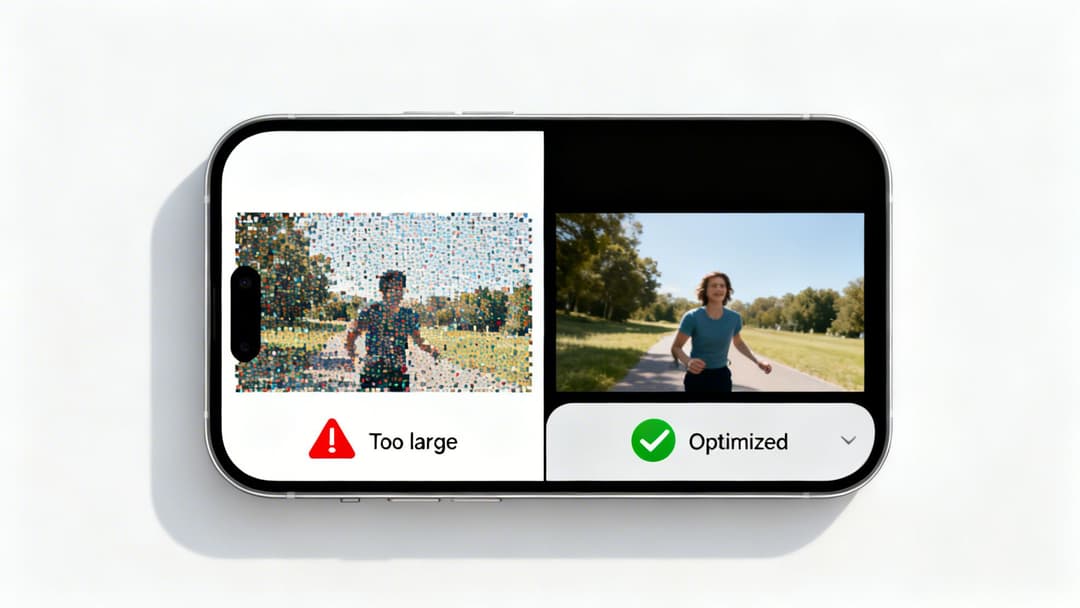
It’s a frustrating moment for any creator. You’ve just finished the perfect GIF, you go to post it, and a technical glitch gets in the way. If you’ve ever uploaded a GIF to Instagram (as a converted video) and run into trouble, you’re not alone. The good news is that most of these problems have straightforward fixes.
The most common complaint I hear is about a sudden drop in quality. Your once-sharp animation now looks blurry or pixelated on Instagram. This almost always comes down to the source file. To avoid this, always start with the highest-resolution GIF you can. When you convert it to an MP4, make sure you crank up the quality settings in whatever tool you’re using.
Fixing Common GIF Upload Problems
Another classic headache is the dreaded "file too large" error. Instagram keeps a tight leash on file sizes. Your best bet is to use a conversion tool that has built-in compression options. A small reduction in file size is usually all it takes to solve the upload problem, and it rarely makes a visible difference in quality.
Sometimes, the issue isn't the file itself but the playback. A GIF that doesn't loop just isn't a GIF. If your video plays once and stops, here’s what to check:
- Converter Settings: Dig into your conversion tool's settings. Look for an option like "loop video" or "infinite loop" and make sure it's turned on before you export.
- Instagram's Editor: Before you hit "Share," double-check Instagram’s own video editor. There's often a "loop" toggle you need to enable for it to play continuously in your feed or as a Reel.
With over 95 million photos and videos flying around Instagram every day, technical quality is your ticket to getting noticed. Grainy animations get swiped away instantly. Polished ones, on the other hand, stop the scroll and can seriously boost your return on ad spend. You can find more eye-opening Instagram statistics from Meltwater that highlight the impact of quality content.
For marketers, these technical hiccups are more than just an annoyance—they can reflect poorly on your brand. Getting a handle on these quick fixes ensures your content always looks professional. By mastering these small details, and understanding related workflows like how to share from Facebook to Instagram, you set your brand up for consistent, high-quality performance.
Your Instagram GIF Questions, Answered
Working with GIFs on Instagram can sometimes feel a bit tricky. Even seasoned pros run into snags. Whether you're a marketer trying to launch a campaign or just looking to spice up your content, getting quick, clear answers is key.
Here are a few of the most common questions we get and the straight-up solutions you need.
Why Can't I Just Upload a .gif File to My Instagram Feed?
This is easily the most frequent question we hear. The short answer is that Instagram’s feed was built for static photos and video files like MP4s. It simply doesn’t have the native tech to play animated .gif files in a feed post.
That's precisely why converting your GIF into a short, looping video is the go-to workaround. It’s the only way to get that animated magic into a standard post.
What's the Deal with Video Length?
Another common sticking point is video length. Instagram requires all feed videos to be at least 3 seconds long. If your converted GIF-to-video file is shorter than that, Instagram will reject it when you try to upload.
The fix is surprisingly simple. Before you convert the file, just pop back into your GIF editor and duplicate a few frames. This will stretch the runtime just enough to clear that 3-second hurdle without any hassle.
Are There Size Limits for GIFs?
Yes, and ignoring them is a surefire way to end up with blurry, unprofessional-looking content. While the GIPHY sticker library handles all the technical specs for you, any custom GIFs you create need a bit more attention.
For feed posts, a good rule of thumb is to aim for a square aspect ratio—1080x1080 pixels is perfect. This helps you avoid any weird, awkward cropping by the app. If you want to get really granular on dimensions, our guide on the best size for Instagram photos has some great principles that apply here, too.
It's a common mistake to create a GIF that's too small, resulting in a pixelated mess when you post it. Always start with a high-resolution source file; you can always scale down, but you can't add quality that isn't there.
Taking a moment to get the size right ensures your animations look sharp and professional, helping you stand out in a crowded feed.
With AdStellar AI, you can stop guessing and start scaling. Our platform lets you bulk-create and test hundreds of ad variations, using AI to pinpoint the creative and audience combinations that deliver the highest ROAS. Transform your Meta campaigns and unlock more revenue by visiting https://www.adstellar.ai.