So, you want to share a post from Facebook to Instagram? It’s actually pretty simple once you have your accounts linked up. You can use the built-in cross-posting feature right inside the Facebook app when you’re creating a new post, Story, or Reel. Or, for a bit more muscle, you can handle everything from one central spot using the Meta Business Suite.
Why Sharing From Facebook to Instagram Makes Sense
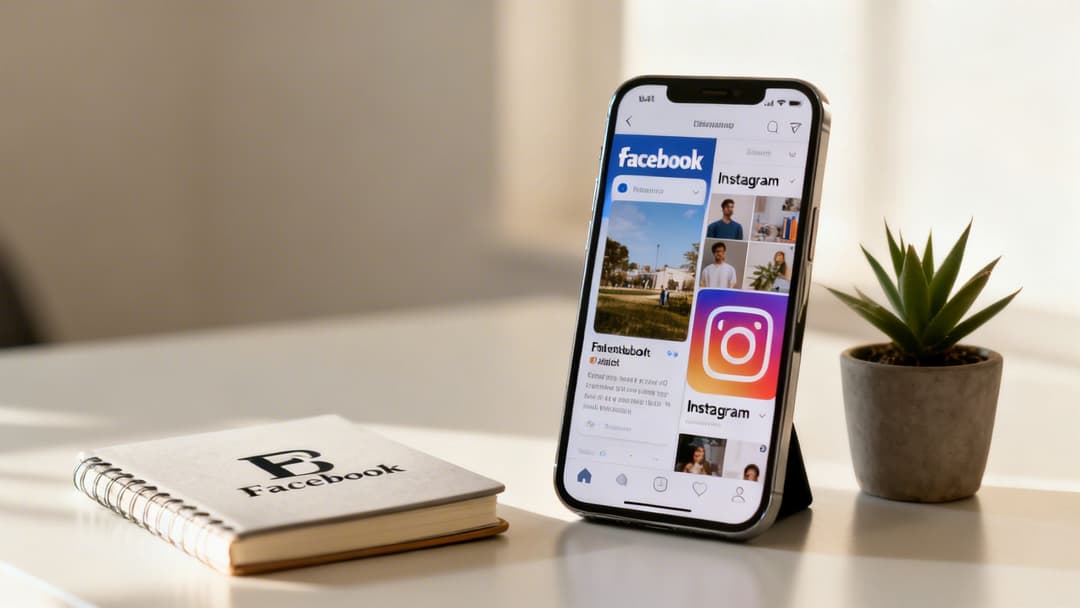
Before we jump into the "how-to," let’s talk about the "why." This isn't just about saving a few minutes of copy-pasting. Cross-posting is a smart, strategic move that helps you build a single, strong brand story across two of the biggest social platforms on the planet. When you learn how to share from Facebook to Instagram, you're not just reusing content—you're amplifying your message without doubling the creative work.
This streamlined approach has some serious perks for marketers and brands. It helps you:
- Keep Your Brand Consistent: A unified voice, look, and feel across both platforms makes your brand instantly recognizable and helps build trust.
- Tap Into Different Audiences: Sure, there's some overlap, but people use these apps differently. Facebook is all about community and conversation, while Instagram is a visual playground for discovery. Cross-posting lets you engage with both mindsets.
- Get More Bang for Your Buck: That awesome video or killer graphic you spent hours on can now pull double duty, driving engagement on two fronts and maximizing your return on creative effort.
Amplify Your Reach in a Connected World
Let's be real: people don't stick to just one social media app anymore. The average person is active on 6.75 different platforms every month, and you can bet Facebook and Instagram are high on that list. This is exactly why a smart cross-posting strategy is so effective.
With Facebook expected to hit 3.1 billion monthly active users by 2026 and Instagram not far behind at 2.3 billion, sharing between them is no longer optional—it’s essential for reaching a global audience. You're just meeting people where they're already hanging out.
Cross-posting ensures your core message is heard loud and clear, no matter which app your followers happen to open first. It turns two separate channels into one cohesive marketing machine.
This kind of synergy is gold for brands. A behind-the-scenes Story on Facebook can perfectly set up a product launch on Instagram, creating a seamless narrative that keeps followers hooked. To see how this fits into a bigger picture, it's worth exploring different Facebook Marketing strategies.
Ultimately, this efficient workflow is a cornerstone for anyone serious about growing their social media presence. And for a deeper dive into platform-specific tactics, our guide on how to effectively promote on Instagram is a great next step.
Connecting Your Accounts for Seamless Cross-Posting
Before we get into the how-to of sharing content from Facebook to Instagram, we need to build the bridge between them. This is the crucial first step that lets your posts flow from one platform to the other. Thankfully, Meta has a central hub called the Accounts Center that makes this connection a breeze, whether you're on your phone or at your desk.
Think of the Accounts Center as your command center for all things Meta. It’s where you handle shared experiences, like logging in across apps, and most importantly for our purposes, cross-posting. Getting your accounts linked here is the foundation for everything else we'll cover.
The Best Place to Start: The Instagram App
For most people, the quickest and most direct way to link everything up is right inside the Instagram app. It’s mobile-friendly and you can get it done in just a few minutes.
- Head to your Instagram profile and tap the three horizontal lines (the "hamburger" menu) in the top-right corner.
- Go to Settings and Privacy, then tap into the Accounts Center.
- Under "Accounts settings," look for and select Accounts. You should see an option to Add accounts.
- Choose to add your Facebook account and just follow the on-screen prompts to log in and confirm the connection.
This process connects your personal Instagram to your Facebook profile. Now, for business users, this is where you need to be careful. It's absolutely critical to make sure your Instagram Business account is linked to the correct Facebook Page, not your personal profile. This is a common slip-up that can cause some major headaches down the line.
For a full walkthrough on the business side of things, check out our detailed guide on how to link your Facebook and Instagram accounts for professional use.
This official screenshot from Meta shows you exactly where to find the "Add accounts" option inside the Accounts Center.
As you can see, the whole interface is built to pull your different profiles together under one roof, making management so much simpler.
Linking from Your Facebook Page
What if you spend most of your time managing your brand’s Facebook Page from a desktop? You can also start the connection right from there. This is especially handy for social media managers.
- First, navigate to your Facebook Page's settings.
- In the left-hand menu, find the Linked Accounts option.
- Select Instagram and then click Connect Account.
You'll be asked to log into the Instagram account you want to link. Once you give it the green light, your Page and Instagram Business profile will be officially connected. This is what unlocks all the cross-posting features in Meta Business Suite and Ads Manager.
For those who want to take their workflow even further, dedicated social media management tools like saucial can offer more advanced automation and scheduling capabilities beyond what Meta provides natively.
Pro Tip: After you link the accounts, always double-check the connection. Pop into your Facebook Page settings and the Instagram app to confirm that the correct Page name appears under "Linked Accounts." This simple check can save you from accidentally posting business content from your personal profile.
Alright, with your accounts linked up, it's time to get into the fun part: sharing content. How you do this really comes down to what you’re trying to accomplish. Are you posting something happening right now, or are you executing a carefully planned content calendar?
Each tool in Meta's ecosystem is built for a different purpose, so let's break down which one to use and when.
The quickest and most common way to get something out there is right from the Facebook mobile app. This is your go-to for in-the-moment updates. Think live events, quick behind-the-scenes shots, or spontaneous announcements.
When you're creating a new post with a photo or video, look right below your name. You'll see a little Instagram logo next to a toggle switch. Just tap that switch, and you're set.
Once you hit "Post," your content goes live on both your Facebook Page and your connected Instagram account at the same time. It doesn't get more direct than that for immediate sharing.
Level Up with Meta Business Suite
For a more strategic approach, you'll want to live in Meta Business Suite. This is the command center for social media managers and marketers for a reason. It lets you create, schedule, and publish to both platforms from a single dashboard.
Inside the Business Suite, you can draft one post and then see a live preview of how it will appear in both the Facebook and Instagram feeds. This is a game-changer for making sure your visuals look right on both platforms.
But the real power here is scheduling. You can set your posts to go live at any future date and time, which is the key to maintaining a consistent publishing schedule without being chained to your phone 24/7.
Using a scheduler like Business Suite completely changes your workflow. You go from being reactive to proactive. You can batch-create an entire week's worth of content, schedule it all out, and spend the rest of your time actually engaging with your community instead of just pushing out posts.
This strategic shift pays off. Ever since Meta bought Instagram for a cool $1 billion back in 2012, the integration has become a massive advantage for anyone in marketing. While Instagram’s average engagement rate of 0.48% typically smokes Facebook's 0.15%, you get the best results by using them together. In fact, some analyses show that posting to Instagram 3-5 times a week can boost your reach by 12%. Cross-posting carousels, in particular, tends to rack up the highest save rates, according to recent social media benchmarks from Social Media Today.
To help you decide which tool fits your needs at any given moment, here’s a quick breakdown.
Choosing Your Sharing Method: Facebook App vs. Meta Business Suite
This table should give you a quick glance at which tool to reach for depending on what you're trying to do.
| Feature | Facebook Mobile App | Meta Business Suite |
|---|---|---|
| Best For | On-the-go, spontaneous posts | Planned & scheduled content |
| Scheduling | No | Yes, for any future date/time |
| Platform Preview | No | Yes, for both FB & IG feeds |
| Editing | Basic, native tools | More advanced options |
| Workflow | Immediate & reactive | Strategic & proactive |
| Ideal User | Individuals, small business owners | Marketers, social media managers |
Ultimately, you'll likely use both. The mobile app is perfect for capturing authentic, real-time moments, while the Business Suite is your workhorse for building a consistent and professional presence.
What About an Existing Facebook Post?
This question comes up all the time: "How do I share a post that's already on my Facebook Page to Instagram?"
The short answer is, you can't—at least not directly. There is no "share to Instagram" button for a post that's already been published. The cross-posting feature only works when you're creating a new post.
But don't worry, you can still get it done with a quick manual workaround. Here’s the easiest way:
- Save Your Media: Download the original photo or video from your Facebook post right to your phone or computer.
- Copy the Caption: Highlight and copy all the text from your Facebook post's caption.
- Create a New Instagram Post: Open up Instagram, start a new post, and use the media and caption you just saved.
This whole process is built on the foundation of having your accounts properly linked. This chart visualizes the different ways you can connect everything to create that unified hub.
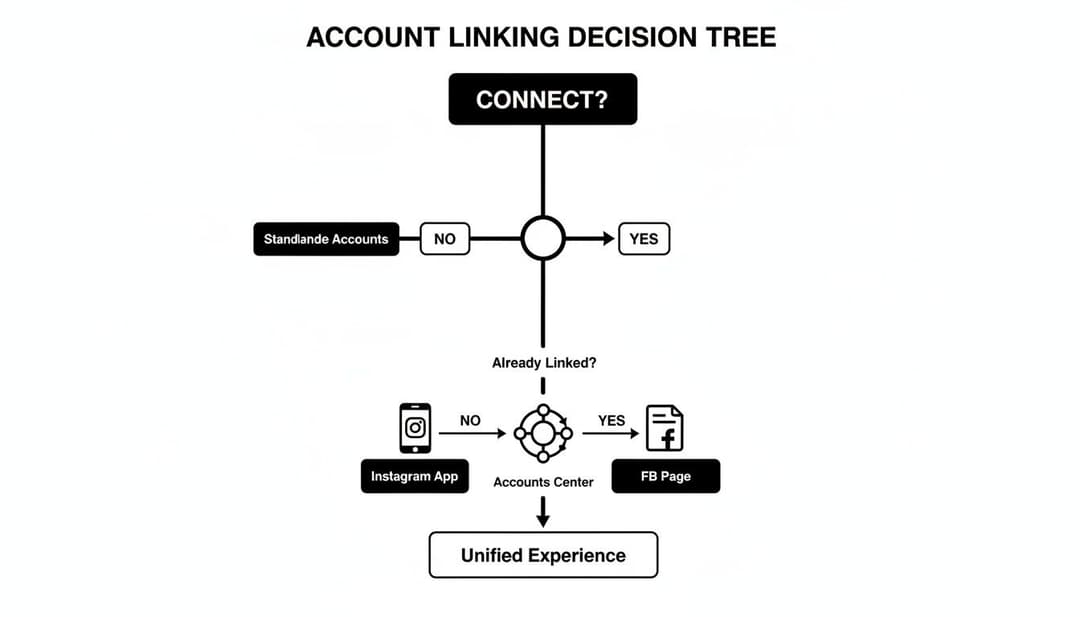
As you can see, whether you start the process from the Instagram app, your Facebook Page, or the main Accounts Center, all paths lead to the same destination: a single place to manage your profiles.
Sharing Facebook Stories and Reels to Instagram
Let's be real—vertical video runs the social media world. If you're not getting your Stories and Reels in front of every possible eyeball, you're leaving engagement on the table. Mastering how to share these formats from Facebook to Instagram is non-negotiable for a smart content strategy.
Thankfully, Meta has made this pretty painless. You can easily push your best vertical content to both platforms, squeezing more life and reach out of every single post.
The most important thing to remember for both Stories and Reels is that you have to enable cross-posting before you hit publish. You can't go back and do it later. The good news is the setting is right there in the creation process; you just need to know where to tap.
Activating Story Sharing
When you're putting together a Facebook Story, this part is a breeze. Once you've added your photo or video and jazzed it up with text or stickers, look for the "Privacy" option down at the bottom. Give that a tap.
In the privacy menu, you’ll spot a section for "Story sharing." This is where the magic happens. Find the toggle for "Always share to Instagram" and switch it on. Just do it once, and Facebook will remember this choice for all your future Stories. From then on, every Story you post to Facebook will automatically pop up on your Instagram profile, too.
This set-it-and-forget-it approach is perfect for maintaining a consistent presence. It ensures your audience sees your daily updates, behind-the-scenes glimpses, and quick announcements, no matter which platform they prefer to use.
Cross-Posting Your Facebook Reels
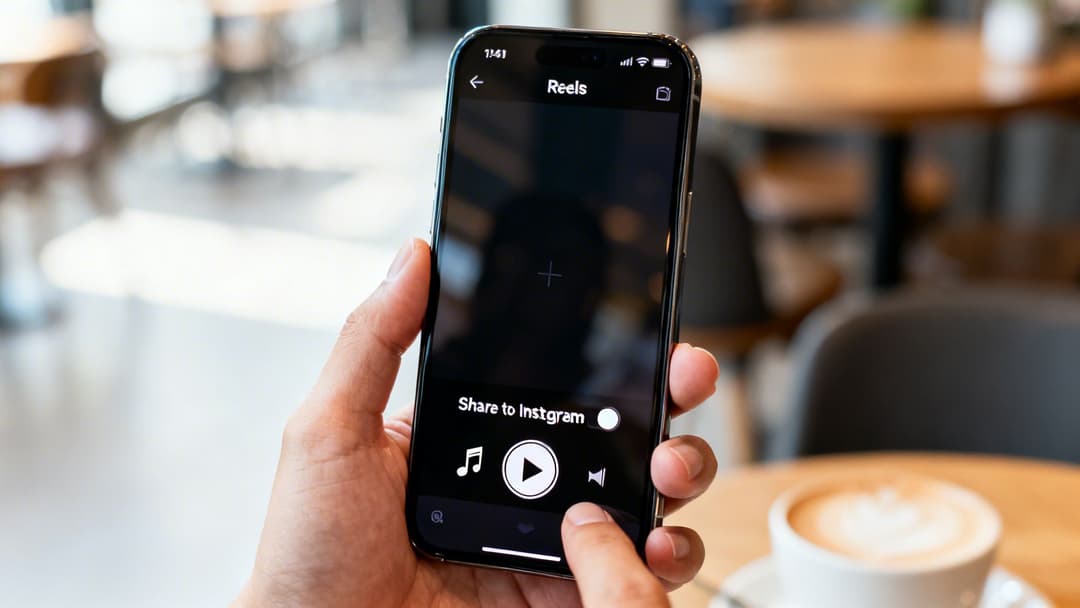
Sharing Reels works on a similar principle. As you’re creating a Reel in the Facebook app and you get to the final publishing screen—after you’ve picked your clip and added audio or effects—take a moment before you share.
You'll see the Instagram logo with a toggle next to it that says "Share to Instagram." Just tap that to turn it on, then hit "Share Reel." That's it. Your video will now publish to your Facebook feed and your Instagram Reels feed at the same time, giving it a shot in both discovery algorithms.
One quick tip on audio, though. If you use copyrighted music from Facebook's library, it can get a little messy. The Reel might not share to Instagram at all, or it might show up with the audio stripped due to licensing rules. For the smoothest experience, stick with original audio or royalty-free tracks.
A Note on Interactive Elements
The last thing to keep in mind is how interactive features translate from one platform to the other. Basic text and filters usually cross over just fine, but the more complex stickers can cause headaches.
- Polls & Quizzes: These are native to Facebook and won't work on Instagram when you cross-post. People will see the sticker, but they won't be able to tap and vote.
- Link Stickers: A link sticker you add on Facebook just won't be clickable on Instagram.
To avoid a clunky experience for your followers, it’s always best to add these kinds of interactive elements natively within each app. And if you want to make sure your visuals look sharp everywhere, check out our guide on the correct size for Instagram Stories for a full breakdown of the specs.
How to Optimize Content for Better Instagram Performance

Just knowing how to share content from Facebook to Instagram isn't the whole game. If you’re just hitting “share” and calling it a day, you’re likely leaving a lot of engagement on the table.
Let’s be real: a one-size-fits-all approach almost never works. These platforms have different audiences, different algorithms, and frankly, a different vibe. Your content needs to respect that.
To get real results, you have to move beyond simple cross-posting and start optimizing. It’s all about making your shared content feel like it was made for Instagram in the first place. That’s how you drive genuine engagement and build a real connection with your followers.
Customize Captions and Hashtags
First up: the caption. While your core message can stay the same, the way you deliver it needs a tweak. Facebook audiences are often fine with longer, more detailed posts. Instagram, on the other hand, is built for shorter, punchier text that gets straight to the point.
Luckily, Meta Business Suite makes this incredibly easy. When you’re setting up a post for both platforms, it gives you separate text boxes for each one. This is your chance to shine.
- For your Facebook caption: Go ahead and be a bit more conversational and detailed. You can even drop links right in the post text.
- For your Instagram caption: Keep it concise and visual. Use emojis to add personality and break up the text so it’s easy to scan.
- For Instagram hashtags: These are absolutely critical for getting discovered on Instagram, but they don't do much on Facebook. Add a solid block of 5-10 relevant, niche hashtags to your Instagram post to pull in people who are searching for your topic.
Think of it like translating your message for a different culture. The idea is the same, but the delivery is tailored to fit in. This small step can completely change how your audience receives your content.
A dead giveaway of lazy cross-posting is seeing a non-clickable link in an Instagram caption. It immediately tells your audience the post wasn't meant for them, which can kill your engagement and credibility.
Optimize Your Visuals for Instagram
Instagram is a visual-first platform. Always has been, always will be. An awkwardly cropped photo or video sticks out like a sore thumb. What looks perfectly fine in Facebook’s flexible feed can get totally butchered by Instagram's more rigid formats.
This all comes down to aspect ratios. A horizontal photo you shared on Facebook will be automatically cropped into a square or vertical rectangle on Instagram, which might chop off the most important part of your image.
Before you hit post, make sure your media is sized correctly for Instagram’s key formats:
- Feed Posts: Stick with a 1:1 (square) or 4:5 (portrait) aspect ratio. The taller portrait format is a winner because it takes up more valuable screen real estate as people scroll.
- Stories & Reels: This one’s non-negotiable. Always use a 9:16 (full-screen vertical) aspect ratio. It creates that immersive, full-screen experience users expect.
If you want to dive deeper into the technical specs, we have a complete guide on the best sizes for Instagram photos.
Adapt Your Calls-to-Action and Tagging
Finally, your call-to-action (CTA) needs a platform-specific makeover. On Facebook, you can put a clickable link pretty much anywhere. But as we know, links in Instagram feed captions are useless.
So instead of writing "click the link below," you need to adapt your language. A simple switch to "Tap the link in our bio to learn more" or "Find the link in our bio" does the trick. It’s a small change, but it directs traffic effectively and avoids frustrating your followers.
Don't forget to use Instagram's native features to your advantage, either. Tagging is huge. Make sure to tag any relevant accounts—brand partners, collaborators, or even the location where the photo was snapped. This sends them a notification and encourages them to share your post with their audience, giving you a nice, organic boost in reach.
Common Questions About Sharing From Facebook to Instagram
Navigating the world of cross-platform sharing can feel like a maze sometimes. Even when you think you've got everything set up perfectly, you can hit a frustrating snag or just wonder if there's a better way to do things.
Let's dive into some of the most common questions and troubleshooting headaches people run into when trying to get their Facebook content over to Instagram.
Why Can't I Share My Facebook Post to Instagram?
This is the classic, "I clicked the button and nothing happened" problem. More often than not, it comes down to just a few usual suspects.
First things first, double-check your account setup. Your Instagram profile absolutely must be a Business or Creator account. On top of that, it needs to be properly linked to the correct Facebook Page inside the Meta Accounts Center. If you're trying to do this with a personal Instagram account, it's a non-starter.
If the accounts are linked correctly, the next thing to look at is the content itself. Instagram is built on visuals, and it's pretty picky about what it accepts from Facebook.
- Text-only status updates from a personal Facebook profile are a no-go.
- Posts where the main feature is a shared link with a preview will almost always fail.
- Any video containing copyrighted music can get blocked from cross-posting because of licensing rules that differ between the platforms.
Key Takeaway: If a post refuses to share, the culprit is almost always your account permissions, the type of content you're sharing, or media rights. Your first stop should always be checking the account connection in the Accounts Center.
Does Cross-Posting Hurt My Engagement?
This is a huge concern for marketers, and the answer is a classic "it depends." If you're just blindly duplicating the exact same post everywhere without any thought, then yes, your performance will likely suffer. It ignores what makes each platform unique.
But that’s not what smart cross-posting is about. It's about adaptation, not just duplication.
When you use a tool like Meta Business Suite to customize your captions for each platform, add relevant hashtags, and tag different accounts, the content feels native wherever it appears. Think of it this way: the time you save by not building every single post from scratch can be put back into what really moves the needle—community management and actually talking to your audience in the comments. And if you're curious about how data is handled across platforms, you can learn about our commitment to user privacy and security.
Can I Share an Old Facebook Post to My Instagram Story?
You can, but you'll have to get a little creative. There isn't an official "share to Story" button for a post that's already live on your Facebook feed; that feature is only for content you're publishing for the first time.
The easiest way around this is a quick manual workaround.
- Pull up the old Facebook post on your phone.
- Take a nice, clean screenshot of it.
- Hop over to Instagram, start a new Story, and upload that screenshot from your camera roll.
Once it's there, you can use all of Instagram's native Story tools to add some commentary, drop in a few stickers, or even use a link sticker (if your account has it) to send followers back to the original post on Facebook.
Ready to stop guessing and start scaling your Meta ads? With AdStellar AI, you can launch, test, and optimize hundreds of ad variations in minutes, not hours. Our AI-powered platform turns your performance data into actionable insights, helping you double down on what works and unlock more revenue with less effort. Discover a smarter way to manage your campaigns at https://www.adstellar.ai.