Connecting your Facebook and Instagram profiles is surprisingly straightforward, and it’s all handled through the Meta Accounts Center. Think of it as the central nervous system for your social presence. A few clicks here unlock a ton of functionality, from cross-posting content to prepping your accounts for some seriously powerful advertising.
Why Connecting Facebook and Instagram Is a Game-Changer
Linking your Facebook and Instagram isn't just a neat trick for social media managers anymore. It's the foundational first step for any real marketing effort on Meta’s platforms. Honestly, keeping these two powerhouses separate in today's digital space is just leaving money on the table.
The immediate perks are great, of course. You get a unified inbox for messages, you can seamlessly cross-post Stories and Reels, and your profile info stays in sync. But the real gold is a bit deeper—it's the advertising and e-commerce muscle this connection gives you.
Unlock a Unified Marketing Ecosystem
When you link your accounts, you’re not just connecting two profiles; you’re building a cohesive ecosystem for your brand. This integration is the key that unlocks Meta's most effective tools. Without it, you’re basically fighting with one hand tied behind your back.
Let's break down the top-level advantages you gain almost instantly.
Immediate Benefits of a Connected Meta Presence
A quick look at the top-level advantages you gain by linking your Facebook and Instagram profiles.
| Feature | Benefit for Marketers | Impact on Performance |
|---|---|---|
| Centralized Management | Handle all messages, comments, and notifications in one place via Meta Business Suite. | Reduces response time and simplifies community management, improving customer satisfaction. |
| Cross-Platform Advertising | Run campaigns across both platforms, letting Meta optimize placements for the best results. | Increases reach and lowers cost per acquisition by finding the most efficient ad inventory. |
| Synced E-commerce | Enable features like Instagram Shopping by linking your Facebook Page's product catalog. | Creates a seamless path to purchase, directly boosting sales from social media content. |
| Shared Audience Data | Build powerful custom and lookalike audiences using engagement data from both profiles. | Leads to hyper-relevant ad targeting, higher conversion rates, and better return on ad spend (ROAS). |
The data really drives this home. Instagram boasts a staggering 3 billion monthly active users, and when you combine that with the viral reach of Facebook Reels, it's a no-brainer. We’ve seen linked accounts achieve up to 28% higher engagement-to-conversion rates compared to siloed ones. It's all about synergy.
By unifying these platforms, you move from managing separate channels to orchestrating a single, data-rich paid social media strategy. This shift is critical for driving efficient growth and maximizing your budget.
Prepare for Smarter Advertising
This simple connection is also your ticket to more advanced advertising. It's a non-negotiable prerequisite for using tools like AdStellar AI, which need cross-platform performance data to truly work their magic and find your winning campaigns. A linked setup gives your AI tools the complete, unfragmented picture of your audience's behavior.
If you’re juggling multiple brands or just want to level up your management game, it’s worth exploring some broader strategies for managing multiple social media accounts effectively. That knowledge, paired with a fully connected Meta presence, is what sets the stage for smarter, more scalable marketing wins.
Connecting Personal Accounts Through Meta Accounts Center
If you're an individual user, creator, or influencer, linking your Facebook and Instagram accounts is a quick win. The whole process is handled in one central spot: the Meta Accounts Center. Think of it as the command hub for your personal profiles.
Getting this done takes just a few minutes, and once it's set up, you can sync key features across both platforms, which is a huge time-saver.
Before you jump in, it’s worth taking a second to understand the differences between Business vs. Personal Instagram accounts. Your account type changes things a bit. For personal use, the Accounts Center is exactly where you need to be. If you're managing a brand, though, you'll want to skip ahead to the section on Meta Business Suite.
Finding the Accounts Center on Mobile
The simplest way to connect everything is right from the Instagram or Facebook app on your phone. The steps are pretty much the same for both, so you can start wherever you're most comfortable.
- From Instagram: Head to your profile page and tap the menu icon (the three horizontal lines). From there, go to Settings and privacy > Accounts Center.
- From Facebook: Tap your profile picture or the menu icon, scroll down, and choose Settings & Privacy > Settings > Accounts Center.
Once you're in the Accounts Center, Meta is usually smart enough to prompt you to add the other account if it sees you're logged into both apps on your phone. If that prompt doesn't pop up, no worries—you can just add it manually.
This is what the main dashboard of the Accounts Center looks like. It’s your one-stop shop for managing all connected profiles.
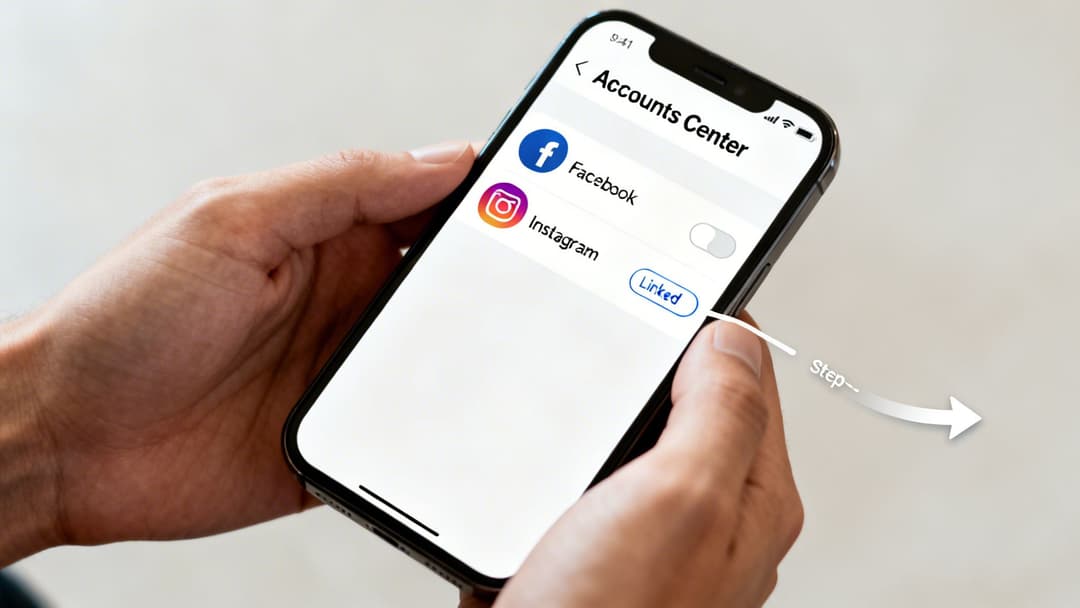
From here, you can see which accounts are already linked and tweak all the shared settings, like cross-posting content.
Customizing Your Shared Experiences
After you've linked the accounts, you get to decide exactly what gets shared automatically. This is a really important step—it's how you make sure your content strategy fits each platform's unique audience.
Take a moment to look at the "Sharing across profiles" settings. You might want to automatically share every Instagram Story to Facebook to maximize reach, but maybe you want to keep your main feed posts separate to avoid spamming your followers with the same content. This is where you make that call.
You can also choose whether to sync your profile info, like your name and profile picture. If you’re building a personal brand and want consistency, syncing is a great idea. But if you have different personas on each platform, you might want to keep that turned off.
For more a deeper dive on this, check out our guide on how to post from Facebook to Instagram (and the other way around). It's all about making the connection work for your goals.
Linking Business Accounts With Meta Business Suite
When you’re ready to move beyond personal posts and start marketing like a pro, linking your Facebook and Instagram accounts graduates to a more serious environment: the Meta Business Suite. This is the command center for any brand, agency, or entrepreneur running ads or managing a commercial presence online.
Frankly, if you're serious about growth, this is a non-negotiable step. It's how you unlock the platform's full business potential.
Unlike the simple connection in the personal Accounts Center, linking through the Business Suite is built for managing assets, permissions, and advertising data. It’s how you properly set up shop to run ads, tap into shared analytics, and turn on critical features like Instagram Shopping.
Prerequisites For A Smooth Connection
Before you jump in, a little prep work can save you a massive headache down the line. Most linking errors pop up because of simple permission mismatches or the wrong account types.
Get these two things sorted out first, and you'll be golden.
- You Must Be an Admin: You need full admin access to the Facebook Business Page you’re connecting. An "Editor" or "Moderator" role just won't cut it, as this process involves changing fundamental connections between your business assets.
- Your Instagram Must Be Professional: Your Instagram account has to be a Business or Creator profile. Personal Instagram accounts can’t be linked to a Facebook Page through the Business Suite, period.
Getting these details right from the start ensures Meta recognizes both assets and lets them shake hands properly.
Navigating The Business Suite Interface
Once your accounts are prepped, the process itself is pretty straightforward. You’ll kick things off by heading directly to your Meta Business Suite dashboard.
This is your main hub for managing everything across both platforms.
This interface pulls together all your tools for posting content, handling messages, and digging into performance analytics across Facebook and Instagram.
From your Business Suite dashboard, find the Settings gear icon, which usually lives in the bottom-left corner. Click it, then navigate to Business Assets. You'll see a list of all pages and accounts tied to your business. Just select your Facebook Page, and you'll spot the option to Connect Instagram Account.
The system will then pop up a login screen for your Instagram credentials. This is a standard OAuth step that authorizes Meta to access and manage the account on your business's behalf. It’s a secure and normal practice for connecting professional tools.
Since Meta started pushing this integration hard back in 2020, the number of business profiles has exploded. By 2023, there were over 200 million on Instagram alone, with a staggering 90% of users following at least one brand.
Linked accounts are now the standard for a reason. Shoppable posts convert 1.7x higher, and agencies have reported up to 60% higher efficiency just from using the unified setup. For any serious DTC or B2B business, this is the only way forward. You can dig into more of these powerful social media statistics to see the full picture.
This professional-level connection is what enables the high-impact features that drive real business results. For a complete walkthrough of all the tools you'll unlock, check out our deep dive on the Meta Business Suite. Getting this connection right is the first step toward a more organized and effective social media operation.
Preparing Your Linked Accounts for High-Performance Ads
Alright, so you’ve connected your Facebook and Instagram accounts. That’s step one. But if you want to run serious, high-performance ad campaigns, the real work is just beginning.
This is where we move beyond a simple link and get into the technical guts of what powers scalable, high-return advertising. It’s a process that trips up a lot of marketers, but getting these next few steps right is absolutely essential for seeing real success with your ads.
We're going to focus on three core areas: verifying your permissions, assigning assets correctly, and making sure your data tracking is locked in. Think of these as the three pillars of a professional Meta advertising setup.
Verifying Permissions in Meta Business Manager
First stop: Meta Business Manager. This is the command center for all your business assets, and permissions are everything. Before you even think about launching an ad, you have to confirm you have the right keys to the kingdom. Without admin access, you'll hit a brick wall the second you try to connect an ad account or a data source.
I like to think of it like being a building manager. You need the master key before you can give your team or agency access to the right floors—in this case, your ad accounts and pages.
- Navigate to Business Settings: Jump into your Business Manager and find the "Users" section. Click on "People" to see everyone with access.
- Check Your Own Access Level: Find your name and make sure it's listed with Full control (admin access). If not, you need to have the current business owner bump up your permissions.
- Confirm Page and Account Access: Under the "Accounts" section, double-check that your Facebook Page and Instagram Account are both listed and that you have full control over them.
Taking a minute to do this simple check will save you from countless headaches and permission errors down the road.
This flow chart breaks down the essential stages for getting your business accounts linked up the right way.
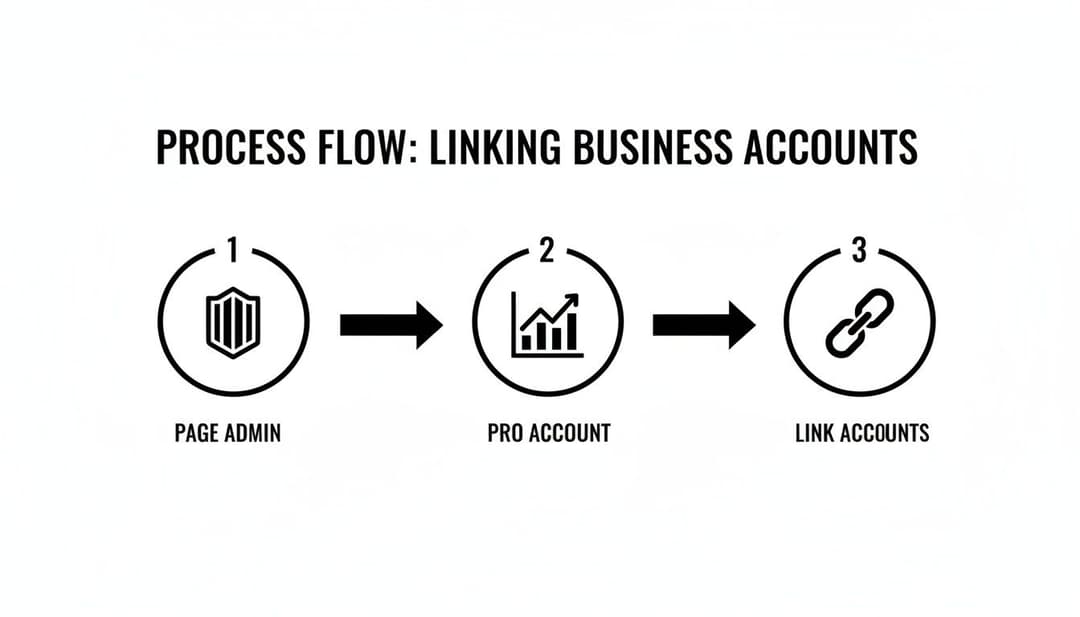
As the visual shows, having Page Admin rights and a professional account are non-negotiable prerequisites. You can't even start the linking process without them.
Assigning Your Instagram Account to the Right Ad Account
Here’s a classic mistake I see all the time: assuming that linking your accounts automatically connects your Instagram profile to your ad account. It doesn't. This is a separate, manual step you have to take inside Business Manager.
If you forget this, you won't be able to run ads using your Instagram profile as the face of the campaign.
Head over to Business Settings > Accounts > Instagram Accounts. Select your Instagram profile, then click the Add Assets button. From there, you can assign it to one or more of your ad accounts. This step explicitly tells Meta which ad accounts have permission to run campaigns on behalf of that Instagram handle.
This simple assignment is what allows you to select your Instagram profile in the "Identity" section when you're building an ad in Ads Manager. Without it, your ads might default to running from your Facebook Page's identity on Instagram, which can look unprofessional, confuse your audience, and tank your performance.
Connecting Your Meta Pixel or Conversions API
Finally, you need to plug in your data source—the Meta Pixel or Conversions API. This is non-negotiable. It's how you track conversions, let Meta's algorithm optimize your campaigns, and build powerful retargeting audiences. Without solid data tracking, you're just throwing money into the dark and hoping for the best.
Properly linking your Facebook and Instagram accounts gives you a seamless way to run ads across Meta’s massive user base, tapping into Facebook's 3.1 billion and Instagram's 2.3 billion monthly active users. This unified approach can cut down your campaign setup time by up to 40%. Brands that do this well often see a 25% higher cross-platform reach, especially with Reels, which are now played over 200 billion times a day.
Getting your Pixel or CAPI set up is a critical piece of the puzzle. You can get a full walkthrough in our guide on how to set up the Facebook Pixel. When your pixel is correctly associated with your ad account, you ensure that every bit of performance data is accurately measured and fed back into Meta’s algorithm, making your campaigns smarter and more effective over time.
Troubleshooting Common Linking Errors and Sync Issues
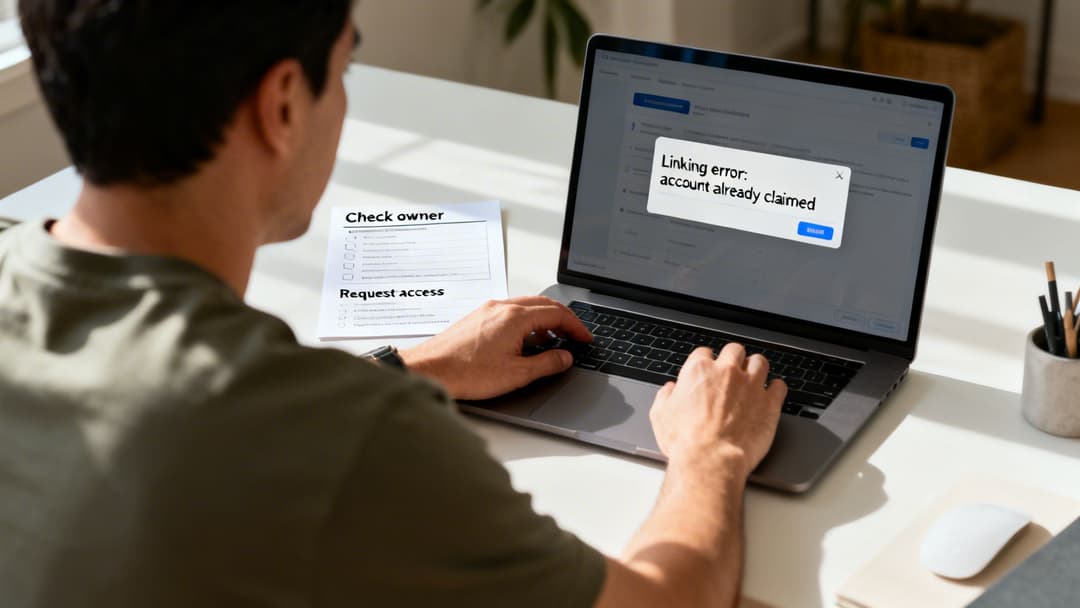
So, you’ve followed all the steps, but the connection between Facebook and Instagram is hitting a snag. It happens. Vague error messages and features that stubbornly refuse to sync can throw a wrench in your workflow, and scrolling through endless help forums is nobody's idea of a good time.
Let's cut through the frustration. Think of this section as your field guide for fixing the most common quirks that pop up. We’ll diagnose the problem and give you the exact steps to get everything working smoothly again.
Common Linking Problems and Quick Fixes
Most linking issues fall into a few common categories. Use this table as a quick diagnostic tool to pinpoint what's going on and jump straight to the solution.
| Error Message / Symptom | Likely Cause | How to Fix It |
|---|---|---|
| "Instagram account is already owned by another business." | A previous agency, employee, or another Business Manager has claimed the account. | Contact the previous owner and ask them to remove the Instagram account from their Business Settings. |
| You're stuck in a login loop or see a "permissions failed" error. | The authorization token is expired or corrupt, often due to browser cache issues. | First, try a hard refresh (Ctrl/Cmd+Shift+R). If that fails, revoke Facebook's access in Instagram's "Apps and Websites" settings and reconnect from scratch. |
| DMs or comments don't appear in the unified inbox. | Incomplete permissions were granted during the initial connection. | Re-authorize the connection in Business Suite and ensure every single permission box is checked, especially for managing messages. |
| Instagram Shopping features won't sync or activate. | The necessary shopping and business management permissions were not enabled. | Go through the connection process again. On the permissions screen, make sure to grant full access to manage your business and catalog. |
Hopefully, that table gets you on the right track quickly. Now, let’s dig a bit deeper into the most frequent headaches.
The "Instagram Account Already Claimed" Error
This is, without a doubt, the roadblock we see most often. You try to link your Instagram account in Meta Business Suite, only to be told it's already connected to another Facebook Page or Business Manager. Nine times out of ten, this happens because a former employee or agency set it up and forgot to remove the connection when they left.
It’s a security feature, not a bug—it prevents someone from hijacking your assets. But it's definitely annoying.
Here’s how to fix it:
- Play Detective: Your first job is to figure out which Business Manager "owns" the Instagram account. Reach out to anyone who has managed your social media in the past.
- Request Removal: Once you find the owner, ask them to log into their Business Settings, go to "Business Assets," find your Instagram account, and click Remove.
- Re-Claim Your Account: As soon as they've released it, you can go back to your own Business Suite and add the Instagram account. It should connect without a hitch.
The key here is communication. A quick email or call to the previous manager is usually all it takes to get the asset released.
Permission Failures and Authentication Loops
Have you ever been stuck in a loop where the system keeps asking you to log in, or it throws a permissions error even though you know you're an admin? This almost always points to an issue with the authorization token—the digital handshake that connects the platforms. These tokens can expire or get corrupted over time.
Most of the time, this is just a simple browser cache issue. Your browser is holding onto old, invalid login data, and it's causing a conflict. The first thing you should always try is a "hard refresh" (Ctrl+Shift+R on Windows, Cmd+Shift+R on Mac) or clearing your cache for Facebook and Instagram.
If a refresh doesn't do the trick, it's time to reset the connection completely.
- Revoke the Old Connection: Open your Instagram app and navigate to Settings > Apps and Websites. Find the Facebook integration in the list and remove its access.
- Start Fresh: Head back over to your Meta Business Suite and begin the linking process from scratch. This forces Meta to generate a brand-new, clean authorization token.
If you're curious about the tech behind this, these connections are powered by a secure protocol. Our article on what OAuth authentication is breaks down how that secure handshake process actually works.
Syncing Issues for Inbox or Shopping Features
This one is sneaky. You get a confirmation that the accounts are successfully linked, but your DMs and comments aren't showing up in the unified inbox, or Instagram Shopping just won't activate.
This is almost always a permissions problem. When you first link your accounts, Meta shows a checklist of permissions it needs. It's incredibly easy to accidentally uncheck a crucial box like "Manage your messages" or "Manage your business."
To fix this, you have to re-authorize the connection and meticulously check every single permission box. Don't skim! This gives Business Suite the full green light it needs to properly manage all the integrated features you want to use.
A Few Common Questions About Linking Accounts
Alright, once you’ve done the technical work of linking your accounts, a few practical questions almost always come up. It's totally normal to wonder what this new connection actually means for your old posts, your future options, and even the privacy of your accounts. Let's clear up some of the most common things people ask after getting their Facebook and Instagram profiles talking to each other.
What Happens to My Old Posts and Stories?
Good news: linking your accounts is a forward-looking move. None of your past posts, stories, or messages will be touched. The connection just turns on new, shared features from this point on. It won’t go back in time to sync or change anything you've already published on either platform.
Think of it like opening a new door between two rooms in your house. The furniture that’s already in each room stays exactly where it is. The new door just lets you move things between them from now on, if you decide you want to.
Can I Link More Than One Instagram to a Single Facebook Page?
This comes up a lot, especially for brands that manage different product lines or regional profiles under one main company. The short answer is no. A single Facebook Business Page can only be officially linked to one Instagram Business or Creator account at a time. This one-to-one setup is fundamental to how Meta organizes business assets.
If you try to connect a second Instagram account, the system will just ask you to replace the one that's already linked. For agencies or businesses that need to handle several distinct Instagram accounts, each one needs its own dedicated Facebook Page to create a proper link inside Meta Business Suite.
This one-page-to-one-Instagram rule is really important for keeping your data clean. It ensures that performance metrics for each Instagram account—like engagement rates and ad conversions—are tracked separately, which keeps things from getting messy in your Ads Manager.
How Can I Safely Unlink My Accounts?
Unlinking is just as easy as linking, but you have to think about the consequences first, especially if you have ads running. You can disconnect your accounts anytime through the same Meta Accounts Center or Business Suite settings where you set them up.
Before you do, though, be aware of what will happen:
- Active Ads: If you’re running campaigns that use placements on both platforms, unlinking can throw a wrench in the works. It might cause errors or force Meta's algorithm to start learning all over again, which could hurt your performance.
- Synced Features: Things like cross-posting, the unified inbox, and shared logins will stop working immediately.
- Shopping Tools: Any e-commerce integrations like Instagram Shopping that are tied to your Facebook catalog will be disabled.
The smartest way to do this is to pause all your active ad campaigns before you unlink the accounts. This avoids any sudden disruptions and lets you reconfigure everything cleanly afterward if you need to. Once your ads are paused, you can go ahead and disconnect without risking your ad spend or messing up your data. It's a simple step that ensures a smooth transition, whether you're just restructuring your assets or making a bigger change in your social media strategy.
Ready to stop wrestling with manual ad setup and start scaling your campaigns? AdStellar AI can generate, launch, and optimize hundreds of ad variations in minutes, turning your creative ideas into high-performing campaigns 10x faster. Learn more at https://www.adstellar.ai.