We’ve all been there. You check your Ads Manager and your stomach drops. A campaign you launched with high hopes is now burning through your budget with nothing to show for it. In moments like these, every second—and every dollar—counts.
You need to pull the plug, and you need to do it now. The good news is, you can.
Your 60-Second Guide to Stopping Facebook Ads Now
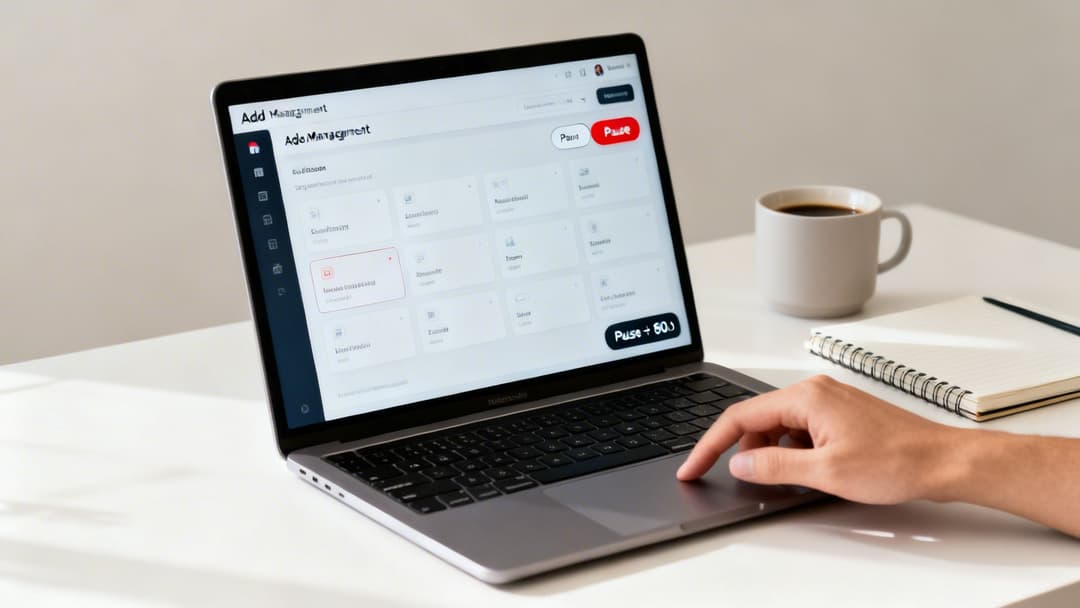
Think of this as the emergency brake for your ad spend. Whether you’re on your desktop or scrambling for your phone to open the Ads Manager app, stopping a runaway ad is surprisingly fast. All it takes is navigating to the right campaign, ad set, or ad and hitting the little blue toggle to turn it off. The change is nearly instant, stopping the bleed before it gets worse.
This isn’t just about panic control; it’s about smart budget management. With Meta's platform seeing over 195 billion monthly impressions and global ad revenue topping $230 billion in 2026, the competition is fierce. When the average CPC hits $1.14, letting a poor performer run is a direct hit to your ROAS. Hitting that toggle immediately protects your bottom line.
Make the Right Call Under Pressure
When you’re in the hot seat, it's easy to get confused. Should you pause it? Delete it forever? Just turn it off? Each choice has different consequences for your campaign’s data, its learning phase, and your ability to use it again later.
A seasoned performance marketer knows that stopping an ad is not failure; it's a strategic decision to reallocate budget and protect profitability. The goal is to act decisively, not emotionally.
To help you make the right call without sifting through pages of Meta's documentation, I’ve put together a quick-reference table. It breaks down your options so you can make an informed decision in seconds.
And if you feel like you're fumbling around the dashboard, a refresher on how to use Facebook Ads Manager can give you the confidence to move quickly.
Stopping Facebook Ads: Your Options at a Glance
Here’s a simple breakdown of what happens when you choose each option, helping you decide which move is best for your situation.
| Action | What It Does | Impact on Data | Best For |
|---|---|---|---|
| Turn Off (Pause) | Immediately stops the ad from delivering. | Preserves all performance data, social proof, and campaign learnings. | Temporarily stopping an ad, seasonal campaigns, or when you plan to restart it later. |
| Delete | Permanently removes the ad, ad set, or campaign. | All data and social proof are lost forever. Cannot be undone. | Removing test ads with errors, outdated creatives, or cleaning up your account permanently. |
In most cases, turning an ad off (pausing) is the smartest move. It gives you time to analyze what went wrong without losing the valuable data and social proof you paid for. Deleting is a final act, so use it sparingly.
Gaining Full Control in Meta Ads Manager
Alright, let's move past the panic button and step into the real command center. To truly get a handle on your ad spend, you need to think of Meta Ads Manager as more than just a place to shut things down. It’s a precision tool for strategic control. The real skill isn't just knowing how to flip a switch, but why you're flipping it in the first place.
The first thing to get your head around is the hierarchy. At the very top sits the Campaign, which dictates your main goal—like generating leads or driving sales. Nested inside each campaign are your Ad Sets, which is where you control the budget, schedule, and targeting. Finally, at the bottom, you have the individual Ads, which are the actual creatives people see in their feeds.
Navigating the Three Levels of Control
Understanding this structure is everything. You can stop ads at any of these three levels, and each action serves a completely different purpose.
- Campaign Level: Turning off an entire campaign is the nuclear option. You’d do this when the whole strategy is off the mark or a big promotion has ended.
- Ad Set Level: This is much more surgical. Maybe a specific "Lookalike Audience 1%" isn't converting, but your interest-based targeting is crushing it. You can kill the underperforming ad set without touching the winner.
- Ad Level: This is where you get super granular. It's a daily task for performance marketers to spot a single ad creative with a dismal click-through rate and disable it, letting the budget flow automatically to the other, better ads within that same ad set.
This layered approach gives you incredible precision. Instead of scrapping a whole campaign because one ad is a dud, you can just pull the weak link and let the strong performers keep running. If you need a more thorough walkthrough of the dashboard's layout, our complete guide on what is Facebook Ads Manager is a great place to start.
This is the main Ads Manager dashboard, where you can see the toggles at every level—Campaign, Ad Set, and Ad.
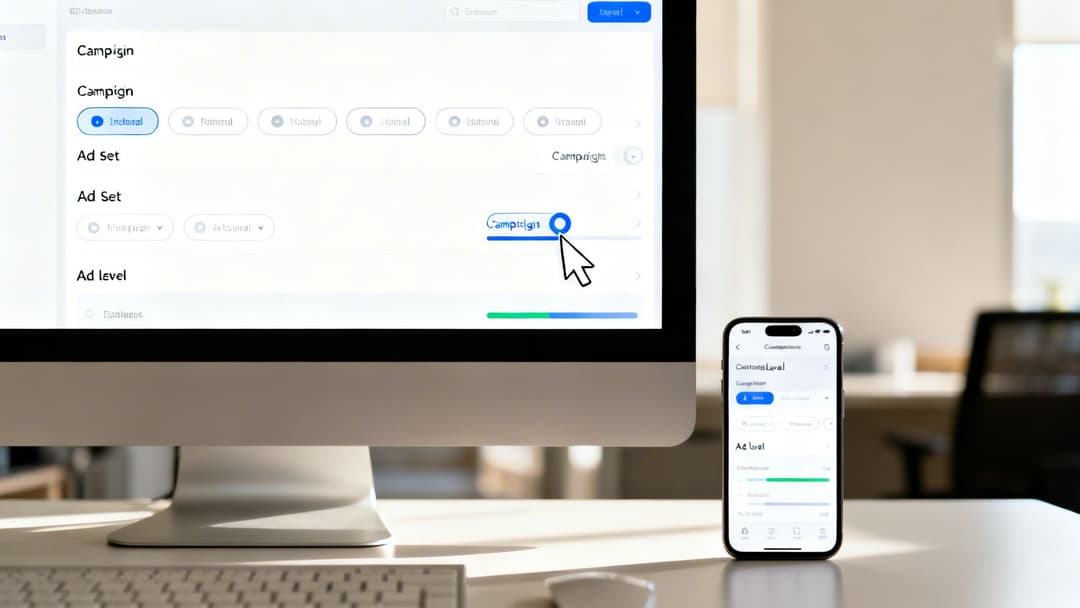
That simple blue toggle switch is your best friend. It gives you instant power to pause spending with a single click at any level.
Cancelling Scheduled Campaigns and Ads
What about campaigns that haven't even started? You can easily cancel any scheduled ad, ad set, or campaign. Just find it in Ads Manager and flip the toggle to off. It’ll stay in your dashboard with a "Not delivering" or "Scheduled" status, but it won’t go live or spend a single dollar unless you switch it back on.
This is a fantastic tactic for getting ahead. You can build out your entire Black Friday or holiday campaigns weeks in advance, get everything approved, and then just leave them on standby. When it's go-time, all it takes is one click to activate them.
Knowing how to quickly pause a campaign in Ads Manager is your emergency brake. When average conversion rates for leads are around 7.72-8.25%, you can't afford to let a bad ad run. In 2026, with a median CTR of just 1.81% and frequency climbing past 4.39, a poor performer can burn cash fast at a median CPC of $0.71.
For those managing more complex advertising infrastructures, a Facebook Ads Mcp Server can offer the kind of programmatic control and deep oversight needed for advanced setups.
Once you master this level of control, Ads Manager stops being an intimidating wall of data and becomes your best tool for protecting your budget and driving performance. You can make smart, data-backed decisions on the fly and ensure every dollar you spend is working as hard as possible for you.
Should You Pause or Delete Your Facebook Ad
Your new ad isn't hitting its goals. It's a moment every performance marketer knows well, and it leads to a critical question: do you pause it, or do you hit delete and wipe it from existence? This might seem like a small choice, but it has huge implications for your ad account's health and future performance.
Think of pausing as putting an ad on a temporary hold. It immediately stops the ad from spending any more of your budget, but—and this is the important part—it keeps all the performance data, audience learnings, and social proof you've already paid for. All those likes, comments, and shares stick around. This makes pausing the right call in almost every situation.
Deleting, on the other hand, is permanent. When an ad is gone, it’s gone for good. You lose every bit of data, every comment, and all the campaign history associated with it.
When to Pause Your Ad
Pausing is your go-to move for nearly any strategic adjustment. It's about preserving assets for later, which is a massive advantage when you're trying to build on what you've learned.
You should always lean towards pausing an ad in these scenarios:
- Seasonal Campaigns: That Black Friday campaign crushed it last year. Don't delete it—just pause it. Next year, you can fire it back up with all its social proof ready to go, giving you an instant head start.
- Temporary Budget Shifts: Need to move some money over to a winning campaign for a couple of weeks? Pause the underperformer. You can always turn it back on later without losing its history.
- A/B Testing: When you're testing multiple creatives, you'll naturally have some that don't perform. Pause the losers instead of deleting them. This preserves the data so you can analyze why they didn't connect with your audience.
If your ads seem to be struggling to get any traction from the get-go, it might be a delivery problem. We have a full guide covering the common reasons why Facebook ads are not delivering that can help you troubleshoot.
When to Delete Your Ad
Deleting should be rare. Think of it as a housekeeping tool for cleaning up obvious mistakes and clutter. Since it's irreversible, you should only use it when you're absolutely sure an ad has no future value.
Here are the few instances where deleting is the right call:
- Glaring Errors: The ad has a huge typo, the wrong price, or a broken link. There's no point in keeping a broken ad around. Delete it and get a corrected version live.
- Outdated Information: The ad is for an event that happened last month or a product you no longer sell. Removing it just keeps your Ads Manager tidy and organized.
- Policy Violations: If Meta rejects an ad for violating a policy and you have no intention of fixing it, deleting it can prevent clutter and confusion down the road.
To make a sharp, data-backed decision on whether an ad is financially worth keeping, a Breakeven ROAS Calculator is a fantastic tool for understanding its performance threshold.
Pro Tip: For a platform like AdStellar AI, historical data is everything. Paused campaigns give our AI the context it needs to make smarter optimizations, spot winning patterns, and build more powerful campaigns for you in the future. Deleting an ad essentially erases those lessons from your account's memory.
Solving Complex Ad Cancellation Problems
You’ve done everything right. You hit the toggle switch, you clicked "off," but the ad just keeps on running, burning through your budget. It’s a frustrating scenario that’s more common than you’d think, and it usually points to a problem deeper than a simple glitch. When the basic steps fail, it’s time to dig in and troubleshoot what’s really going on.
First, don't panic. Sometimes, the issue really is just a lag between your command in Ads Manager and Meta's servers catching up. Give it a few minutes, clear your browser cache, and refresh the page. If that ad is still stubbornly active after 15-20 minutes, you're likely dealing with more than just a simple delay.
Another common culprit is an ad getting stuck in the "In Review" status. You can’t just turn off an ad while Meta is actively reviewing it. If you absolutely need to stop it in its tracks, your only real move is to delete the ad entirely. It feels drastic, but it's the only way to guarantee it won’t get approved and start spending when you’re not looking.
Untangling Permission and Billing Issues
If you're part of an agency or a larger marketing team, permission conflicts in Meta Business Suite are a classic headache. You might find you can see all the campaigns, but you lack the admin-level permissions needed to actually edit them or switch them off. If that toggle switch is greyed out and unclickable, this is almost certainly the problem.
To fix this, you'll need to figure out who holds the keys:
- Find the Ad Account Admin: Head over to Business Settings > People. This will show you who has full control over the account.
- Request Higher Access: Your next step is to reach out to that admin. Ask them to either turn off the ad for you or, if appropriate, elevate your role to "Ad account admin" so you can manage it yourself.
This kind of permission roadblock pops up all the time, especially when offboarding clients or shifting team members around. Always double-check that permissions are set up correctly ahead of time to avoid getting locked out when you need to act fast.
If your access has been restricted out of the blue, you could be dealing with a completely different issue. We have a guide that walks you through the steps to take when your Facebook ads account is disabled.
Aggressive campaign scaling on Facebook requires swift action. With retail conversion rates expected to hit 14.29% by 2026 and average CPCs at $1.14, every unpaused dud ad erodes margins. Failing to cancel underperformers quickly means you're fighting an uphill battle against rising costs and the 1-5% of creatives that inevitably get caught in policy rejection traps. You can find more detailed stats about these trends in Facebook advertising on sqmagazine.co.uk.
Deactivating an Ad Account Completely
In more extreme situations, you might need to shut down an entire ad account for good. This is the final, irreversible step, usually taken when a business is closing its doors or an agency is parting ways with a major client.
Before you pull the plug, you have to understand the consequences. This isn't something you can undo.
- Permanent Data Loss: All your historical campaign data, audience insights, and performance metrics tied to that account will be gone forever.
- No Reactivation: Once you deactivate the account, there is no turning it back on.
If you’re absolutely certain this is the right move, first make sure every single campaign is turned off. As an immediate fail-safe, set the account spending limit to $0. You can do this by navigating to Billing & Payments > Payment Settings > Account Spending Limit.
With that done, head to Ad Account Settings. Assuming you have no outstanding balance and are the sole admin on the account, you will see an option to "Deactivate Ad Account." Follow the on-screen prompts, and you're done. This action guarantees no more charges can ever be made to that account.
So you've hit the kill switch on a Facebook ad that just wasn't cutting it. It's easy to feel like you've just wasted time and money, but hang on. The best performance marketers I know don't see a cancelled ad as a failure. They see it as a data goldmine.
Before you just turn off a sputtering campaign and move on, you need to ask yourself one thing: what can this ad teach me?
Honestly, a struggling ad is packed with insights. Every single metric, from a dismal click-through rate (CTR) to a sky-high cost-per-acquisition (CPA), is telling you a story. It’s a story about your audience, your copy, your creative—everything. Running a quick 'campaign post-mortem' is what separates the pros from the amateurs. It turns a frustrating loss into a valuable lesson for your next launch.
Perform a Campaign Post-Mortem
Start by putting the ad's performance under the microscope. Was it the creative that fell flat? The copy? The audience you were targeting?
For instance, if your ad had a killer image that got tons of impressions but hardly any clicks, your copy or call-to-action probably wasn't pulling its weight. On the flip side, if you got plenty of clicks but no conversions, you've got a disconnect between what the ad promised and what the landing page delivered.
Digging into these signals shows you exactly where the strategy went off the rails. Maybe your targeting was way too broad, your headline didn't grab anyone, or your creative was just another piece of noise in a crowded feed. Nailing down that root cause is the only way you'll avoid making the same expensive mistake again.
I saw this happen with a client selling a real estate course. They boosted their ROAS by a massive 5.7x just by rewriting the ad copy. The first version was a generic "make more money" pitch. The winning version told a specific, emotional story they pulled from news articles. That failing ad's data showed them exactly what was broken—the weak narrative.
The decision tree below gives you a solid framework for what to do when you're trying to stop an ad and running into issues.
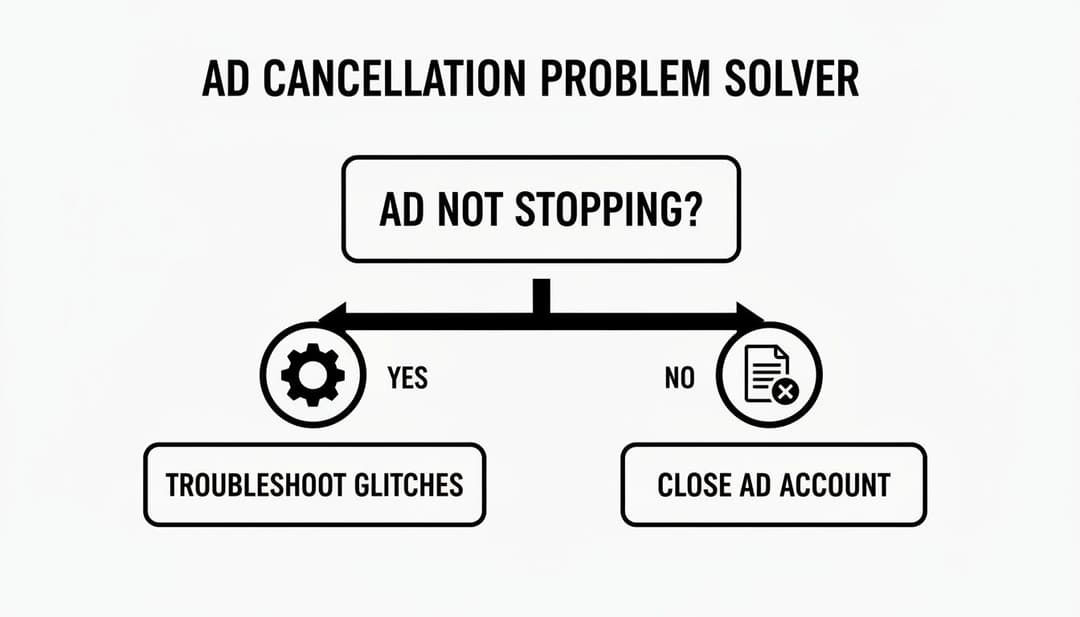
This flowchart breaks it down into two main paths: troubleshooting the tech if an ad won't stop, or moving to close the account if the problem is bigger.
Automate Your Learning Process
Going through this analysis manually is powerful, but it’s also a time sink. This is where more advanced platforms like AdStellar AI can completely change the game by automating the whole process. Our AI digs into the data from your paused or failed campaigns to find the exact patterns that caused them to underperform.
- Creative Analysis: It pinpoints which images, videos, and headlines are consistently falling flat.
- Audience Insights: The AI uncovers which audience segments just aren't biting on your offers.
- Copy Evaluation: You'll see which messages lead to low engagement or even negative reactions.
This kind of automated analysis goes beyond just telling you what went wrong. It uses those findings to help you build smarter, more effective campaigns right from the start. Suddenly, every dollar spent—even on a "failed" ad—becomes an investment in your future success.
You can learn more about these strategies and discover how to relaunch successful ads based on past data in our full guide. When you adopt this mindset, you're no longer just canceling ads; you're building a playbook of what works.
Frequently Asked Questions About Cancelling Ads
Alright, so you’ve navigated Ads Manager and hit the stop button on your campaign. But even after you’ve figured out how to cancel your Facebook ads, a few nagging questions almost always pop up. Let's clear up the common points of confusion I see marketers grapple with, so you can move forward with confidence.
If I Cancel My Facebook Ads, Will I Get a Refund?
This is the big one, and the short answer is almost always no. When you cancel an ad, you’re only stopping all future charges. You're still on the hook for any ad spend that’s already been racked up—every click, impression, and conversion that happened before you pulled the plug.
Think of it like a running tab at a coffee shop. You can tell the barista you're done for the day, but you still have to pay for the lattes you've already ordered. Meta bills for the ad delivery that has already occurred.
Now, if you suspect a technical glitch or a straight-up billing error caused the overspend, you absolutely can and should open a support ticket with Meta to dispute the charge. Just don't expect a refund for legitimate ad delivery.
Key Takeaway: Stopping an ad protects your future budget, but it doesn’t erase the bill that has already been racked up. Always keep an eye on your billing threshold and payment dates to avoid any surprises.
How Long Does It Take for a Canceled Ad to Stop Running?
It’s fast. Like, really fast. When you go into Ads Manager and turn off or delete an ad, Meta’s system yanks it from circulation almost immediately. For all practical purposes, the ad stops delivering within minutes.
You might see a tiny, final charge trickle in on your invoice after you've hit stop. Don’t panic—this isn’t a sign your ad is still running. It’s just a slight reporting delay as the system catches up on the last few impressions or clicks that happened right before you flipped the switch.
Can I Reactivate a Deleted Facebook Ad?
This is a critical distinction, so listen up: you absolutely cannot reactivate a deleted Facebook ad. Deletion is permanent. It’s irreversible. Once you hit delete, that ad is gone for good, taking all its performance data and precious social proof (comments, likes, shares) with it.
This is exactly why pausing is the go-to move in most situations. If you delete an ad and later realize it was a mistake, you're forced to build a brand new one from scratch, starting with zero engagement. Trust me, it's a painful lesson to learn.
What Happens to My Comments and Likes if I Just Pause the Ad?
Everything is completely safe. When you pause an ad, all that hard-earned social proof is perfectly preserved. The likes, comments, shares, and video views all remain tied to that ad post.
The ad simply stops being actively shown to new people in their feeds.
The best part? If you decide to un-pause the ad later, it comes back to life with all that valuable engagement intact. This is a huge advantage, as social proof often gives a relaunched ad an immediate performance boost.
Ready to stop guessing and start scaling? AdStellar AI can help you turn insights from paused campaigns into your next big winner. Automate your creative testing, identify top performers, and build more profitable campaigns 10x faster. Learn more at https://www.adstellar.ai.